
Omnichannel integration solution
This solution is suitable for large multinational companies operating in multiple countries, with business scenarios covering both online and in-store payments. It addresses all acquiring business needs for you across various scenarios through a single solution.
Business scenarios
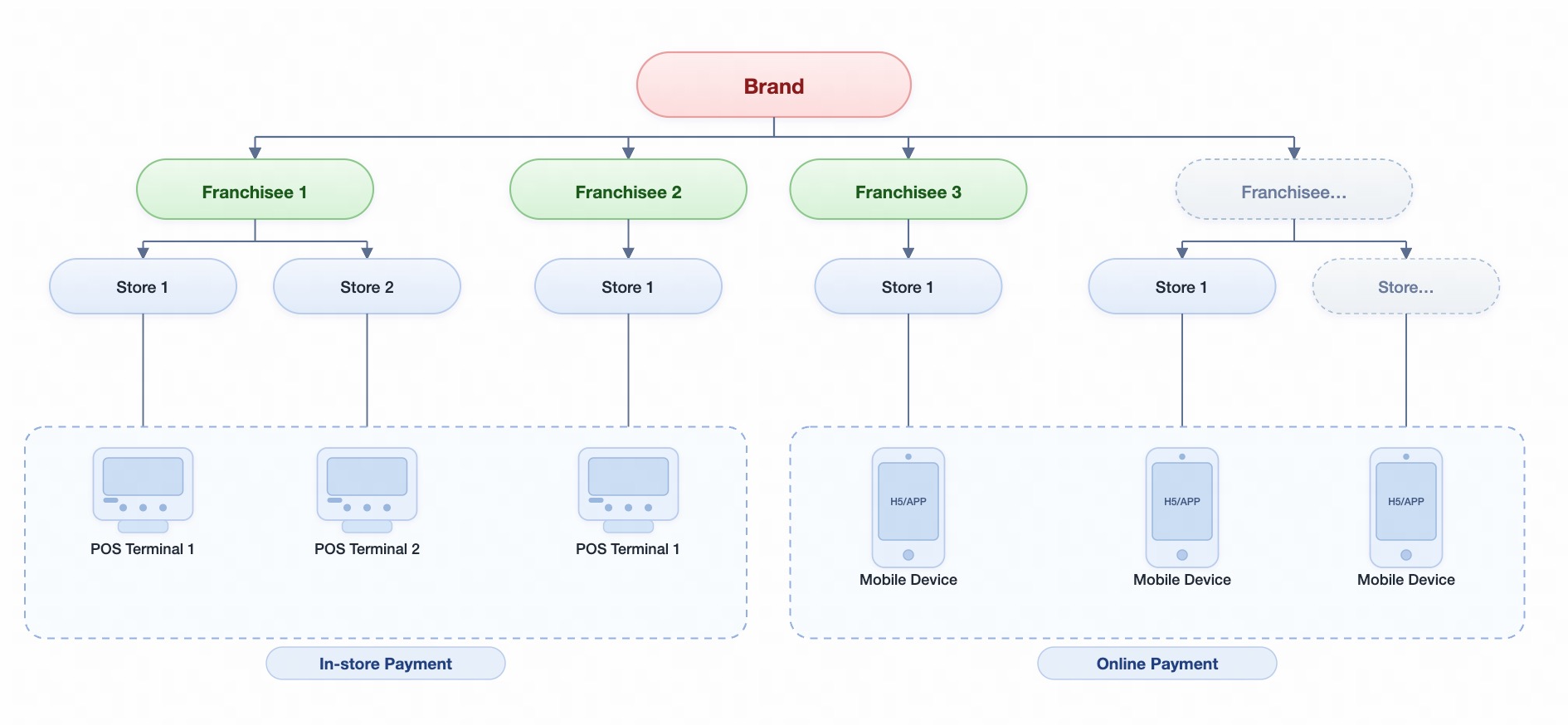
Roles
- Brand (T1): Multinational company operating in multiple countries, which integrates with Antom for system integration.
- Franchisee (T2): This entity can be a franchisee, subsidiary, branch, or other local business unit. It is the contracting and settlement entity with Antom. (A 1:n relationship with the brand).
- Store (T3): A physical offline store operated by the franchisee or subsidiary. (A 1:n relationship with the franchisee).
- Cashier device: A device within the store with independent ordering capabilities, such as a Terminal POS, Kiosk, etc. (A 1:n relationship with the store).
- H5/APP: Online ordering and payment method provided by the brand for franchisee stores (1).
A multinational company/brand company operates in multiple countries, and the company has multiple franchisees/subsidiaries/branches and other business entities locally. The local business entities have 1~n stores. The stores have both online and offline payment scenarios.
Note:
- "Multinational company/brand company" technical team integrates with Antom (AKA headquarters-to-headquarters cooperation)
- "Franchisees/subsidiaries/branches and other business entities" sign acquiring settlement contracts with Antom, and transaction settlements go to the bank account of each local business entity.
Role association in APIs
Five roles need their identities specified in the pay API:
Role identity | Corresponding parameter in API | Length limit | Corresponding parameter in reconciliation statement | Quantity | How it is generated |
Brand (T1) | client-id (http hearder) | 64 | None | 1 | Assigned after registration (different client_id assigned after registration in different countries) |
Franchisee (T2) | None | 64 | customerId | 1~n | Antom merchant ID assigned after registration |
order # merchant # referenceMerchantId | 64 | referenceMerchantId | 1~n | Merchant ID defined by the merchant, provided to Antom during registration. (Corresponding relationship needs to be maintained by the merchant) | |
agent-token (http hearder) | 64 | None | 1~n | Antom merchant token integration information assigned after registration | |
Store (T3) | order # merchant # store # referenceStoreId | 64 | referenceStoreId | 1~n | Defined by the merchant, provided to Antom during registration. (Corresponding relationship needs to be maintained by the merchant) |
Device | order # merchant # store # storeTerminalId | 64 | None | 1~n | Defined by the merchant, provided to Antom during registration. (Corresponding relationship needs to be maintained by the merchant) |
H5/APP | env # terminalType | Web/WAP/App | None | 1 | Set by the merchant during development |
Application scenarios
Online acquiring scenario
Online acquiring scenario includes H5 payments on mobile devices, in-app payments, and payments made through a PC browser.
User experience:
- Buyer selects payment method and places order in H5/APP/PC.
- Redirect the buyer to payment method processing page.
- Buyer confirms payment in the supported payment method.
- Redirect back to H5/APP/PC merchant page.
Note: Please confirm the supported payment methods with Antom Business Support.
In-store acquiring scenario
In-store acquiring scenario includes QR code display payment on devices such as Kiosk, and card acquiring payment on POS devices.
User experience 1: (QR code display payment)
- Buyer selects payment method and places order.
- Obtain QR code (image, link, etc.) from Antom.
- Display QR code on user-visible screen.
- Buyer scans this QR code with the corresponding payment APP.
Note: Any device with a screen display can support QR code display payment, such as Kiosk, dual-screen display POS machines, terminals with screens, etc.
User experience 2: (Card payment)
- Buyer selects card payment.
- Place order on POS or terminal.
- Buyer swipes card on the corresponding device to complete payment.
Note: Please confirm the supported device list with the Antom Business Support.
Online payment integration
Payment flow
The payment flow for various online payment methods consists of the following integration steps:
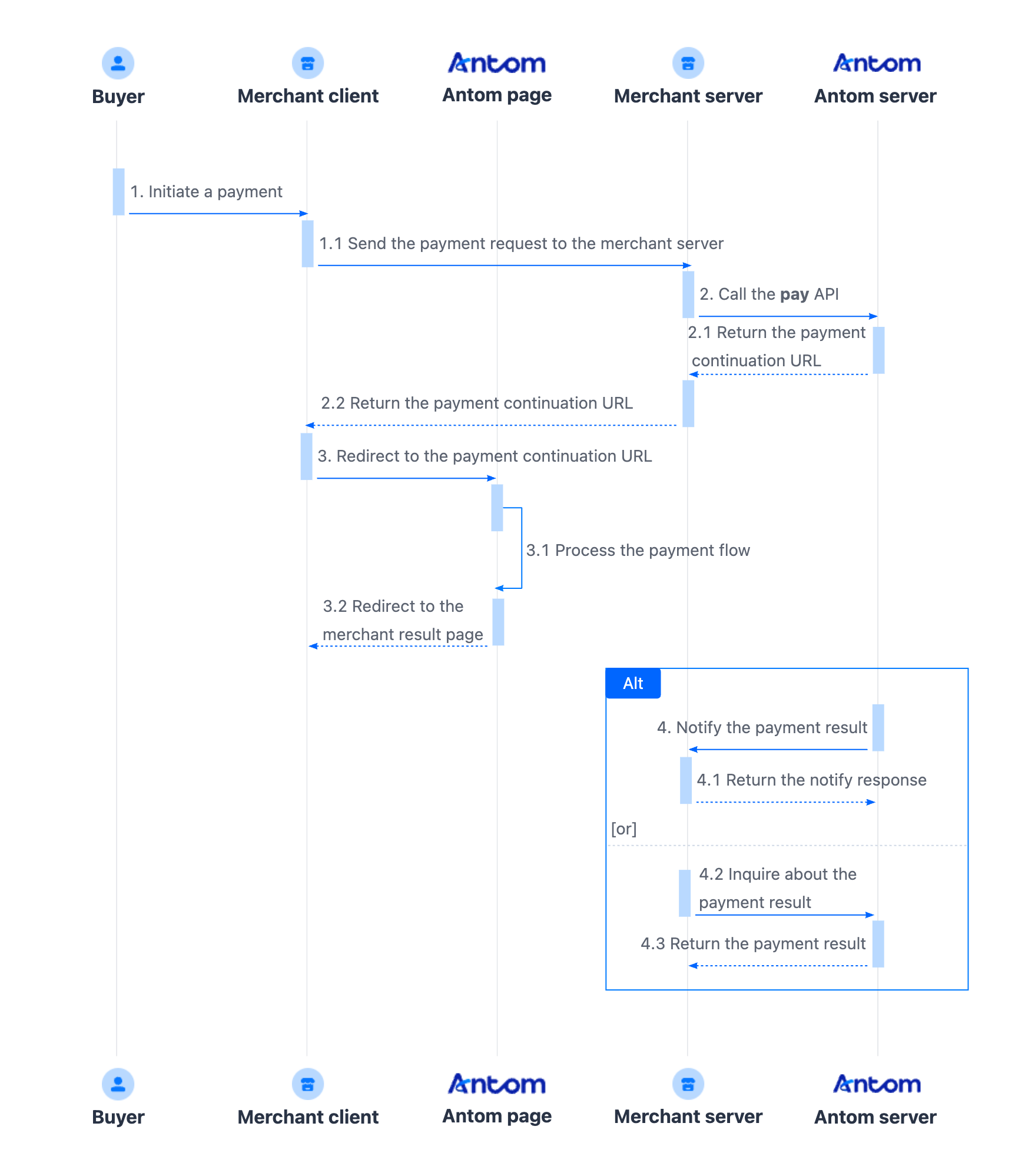
- The buyer enters the checkout page.
- Create a payment request.
After the buyer selects a payment method and submits the order, the merchant server calls the pay (One-time Payments) API to obtain the payment link to complete the payment based on the payment method, amount, and currency. - Handle the payment continuation URL.
The merchant client redirects to the URL page returned by the payment request, or invokes the relevant application to complete the payment. The payment continuation URL proceeds the payment process with different operations based on the characteristics of payment methods, such as collecting information, redirecting buyers, invoking the app, displaying QR codes, and performing verifications. - Get the payment result.
The merchant server receives the payment result notification returned by the Antom server, and processes the transaction according to the result. Obtain the payment result using one of the following two methods:
- Asynchronous notification: Specify the paymentNotifyUrl in the pay (One-time Payments) API to set the address for receiving asynchronous notifications. When the payment is successful or expires, Antom uses notifyPayment to send asynchronous notifications to you.
- Synchronous inquiry: Call the inquiryPayment API to check the payment status.
Integration steps
Start your integration by taking the following steps:
- Learn how to call Antom APIs.
- Create a payment order.
- Get the payment continuation URL.
- Obtain the payment result.
Step 1: Learn how to call Antom APIs
To communicate with the Antom server, please first read the following documents to understand how to call Antom APIs:
Step 2: Create a payment order
Call the pay (One-time Payments) API to initiate a payment request, you need to collect the buyer's payment method, order information, device information, and payment amount.
The following are the key parameters in the payment request:
| Parameter name | Required | Description |
referenceMerchantId | Yes | Merchant ID defined by the merchant, provided to Antom during registration. (Corresponding relationship needs to be maintained by the merchant) |
agent-token | Yes | Antom merchant Token integration information assigned after registration. Used to specify which merchant to collect payment for. |
referenceStoreId | Yes | Defined by the merchant, provided to Antom during registration. (Corresponding relationship needs to be maintained by the merchant) |
storeTerminalId | Yes | Required for in-store scenarios. Defined by the merchant, provided to Antom during registration. (Corresponding relationship needs to be maintained by the merchant) |
productCode | Yes | In this scenario, the field is fixed to |
transBusinessScene | Yes | Used to specify the payment scenario. Valid values are:
|
paymentRequestId | Yes | A unique ID generated by the merchant. |
paymentAmount | Yes | Payment amount, which is set to the smallest unit of the payment currency. |
| paymentMethod.paymentMethodType | Yes | Payment method enumeration value. |
paymentRedirectUrl | Yes | The payment result page of the merchant side, which needs to be displayed according to the results of the server, and is not fixed as a successful page. |
paymentNotifyUrl | No | The payment result notification address, which can be specified via the API or set a fixed value in Antom Dashboard. |
settlementStrategy | Yes | The settlement strategy of the payment. If you have signed multiple settlement currencies, you need to specify it in the API. |
order | Yes | Order information, including order amount, order ID, and order description. |
env.terminalType | Yes | The environment in which the buyer initiates a transaction.
|
env.osType | No | The environment in which the buyer initiates a transaction. When initiated on the merchant's mobile browser, env.osType is
|
For more information about the complete parameters, refer to the pay (One-time Payments) API.
The following shows a sample of how to call the pay (One-time Payments) API to initiate a payment:
{
  "transBusinessScene" : "ONLINE", // Payment scenario (Online/In-store)
  "env": {
    "osType": "ANDROID",
    "terminalType": "WAP", // Payment environment
  },
  "order": {
    "merchant": {
      "referenceMerchantId": "SM_001", // Franchisee
      "store" : {
        "referenceStoreId" : "store_01", // Franchisee store
        "storeTerminalId" : "001" // Payment device in franchisee store (not required in online scenario)
      },
    },
    "orderAmount": {
      "currency": "CNY",
      "value": "1314"
    },
    "orderDescription": "Cappuccino #grande (Mac's coffee shop)",
    "referenceOrderId": "ORDER_0656237919440XXXX"
  },
  "paymentAmount": {
    "currency": "CNY",
    "value": "1314"
  },
  "paymentMethod": {
    "paymentMethodType": "ALIPAY_CN"
  },
  "paymentNotifyUrl": "https://www.gaga.com/notify",
  "paymentRedirectUrl": "imeituan://",
  "paymentRequestId": "Mbu1XMcI8TsH6oIVbioGeyvXA544N9UTIeHJ0YMTLYhRomPU0n7Je2cp3kiCADbp",
  "productCode": "CASHIER_PAYMENT",
  "settlementStrategy": {
    "settlementCurrency": "USD"
  }
}
You can obtain the payment redirection URL from the response of the pay (One-time Payments) API.
The following key parameters are included in the response message.
| Parameter name | Description |
result.resultStatus | Indicates the call status of the pay (One-time Payments) API. |
normalUrl | The URL that redirects users to a WAP or Web page in the default browser or the embedded WebView. |
applinkUrl | The URL that redirects users to open an app when the target app is installed, or to open a WAP page when the target app is not installed. |
schemeUrl | The URL scheme that redirects users to open an app in an Android or iOS system when the target app is installed. |
The table shows the possible values that the result.resultStatus field in the response message may return. Handle the result according to the guidance:
result.resultStatus | Message | Further actions |
| The payment is successful. | No further action is needed. |
| The payment is failed. | Close the current transaction order, or replace the paymentRequestId and initiate a payment request again. |
| Unknown reasons. |
|
Note: If you did not receive a response message, it might be due to a network timeout. Close the current transaction order, or replace the paymentRequestId and initiate a payment request again.
Common questions
Q: How to determine the type of URL that needs to be consumed in the response message?
A: Depending on the payment method and the type of payment on different terminals, Antom may return one or more of the following three URLs: normalUrl, applinkUrl, and schemeUrl. The merchant server needs to pass these URLs to the merchant front end, and you can choose any URL for redirect consumption. For more information, refer to How to properly use the payment continuation URL.
Q: What is paymentId?
A: If you store the corresponding order number for subsequent refunds and reconciliations, you can specify paymentId.
Q: How to set terminalType?
A: The valid values of terminalType are:
- If the buyer initiates a transaction from PC, the terminalType needs to be specified as
WEB.- If the buyer initiates a transaction from the mobile browser, the terminalType needs to be specified as
WAP. Add the osType parameter and fill in the corresponding system parametersANDROIDorIOSaccording to the buyer's mobile phone.- If the buyer initiates a transaction from app, the terminalType needs to be specified as
APP.
Step 3: Get the payment continuation URL
After getting the payment continuation URL returned by Antom, the merchant server passes the address to the front end. The merchant front end redirects to the payment method page. The different types of payment continuation URL are shown in the following table:
Type | Description | Example URL |
normalUrl | The URL of an HTTPS address, used to redirect to the website page of the payment method on the same browser page. | URL=serverResponse.normal |
applinkUrl | The Android App Link or iOS Universal Link that is used for redirection in the payment process. | URL=serverResponse.applink |
schemeUrl | The scheme URL that is used to open a payment method app. | URL=serverResponse.scheme |
Refer to How to properly use the payment continuation URL for more details.
The following is the sample codes for loading payment continuation URL on the merchant front end:
if (URL != null) {
    window.open(URL, '_blank');
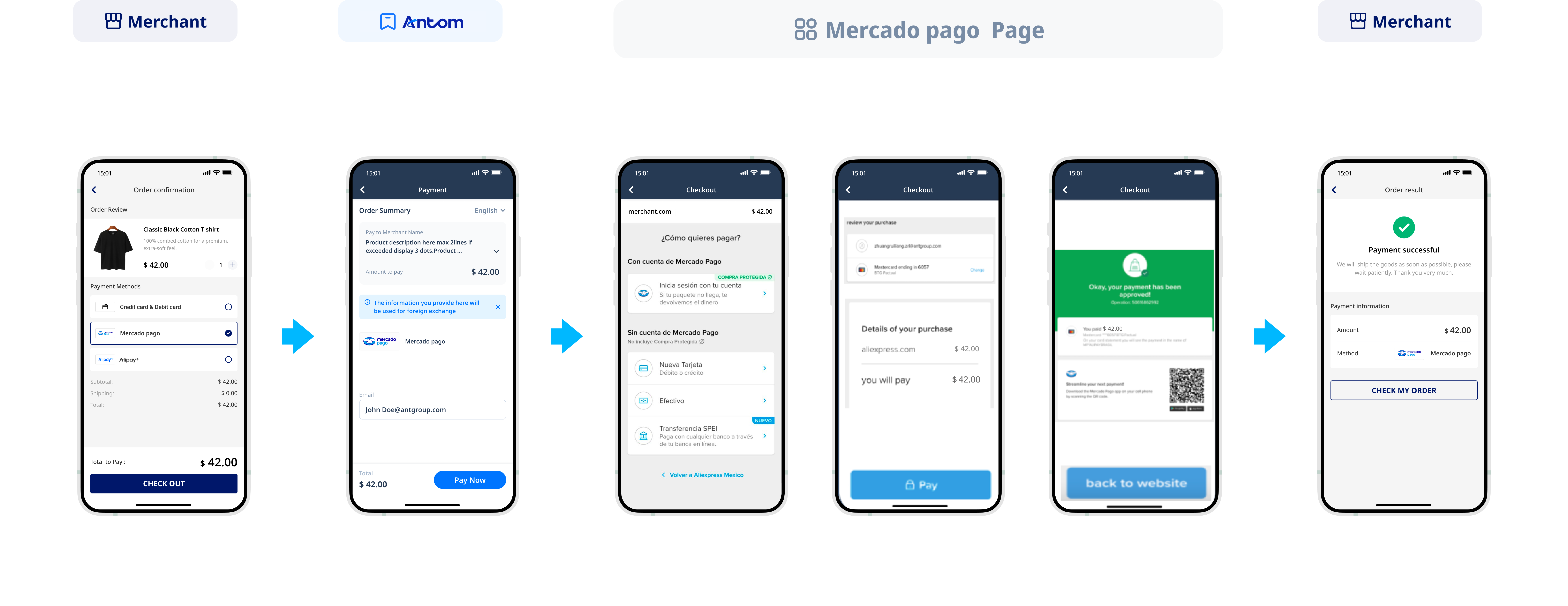
}The following figure shows the effect of the payment method checkout page: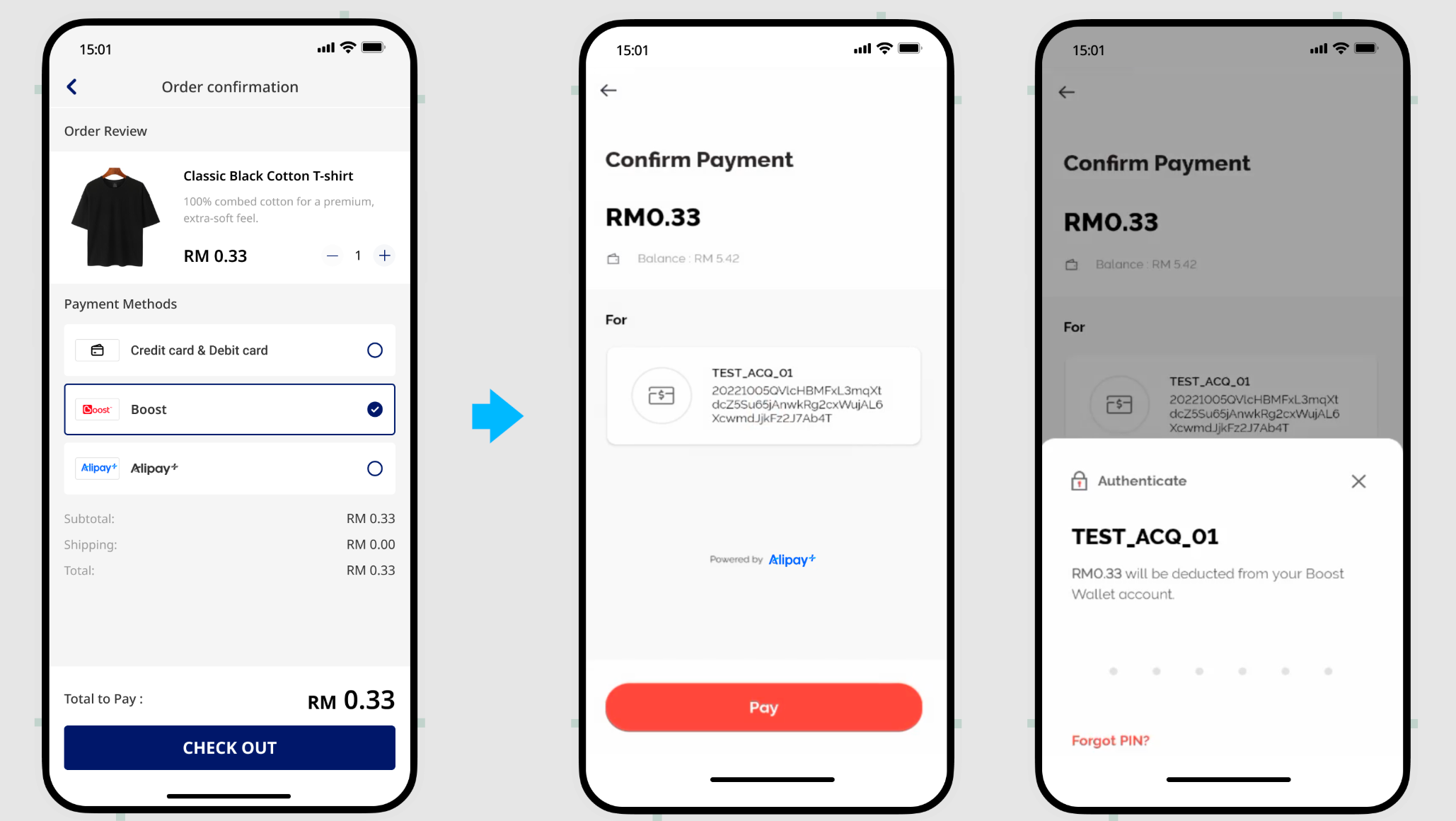
Different payment methods return different payment continuation URLs at different terminals. Antom returns different payment continuation URLs based on the paymentMethod and terminalType values you specified. The following table lists the types of returned payment continuation URLs and user experience on different terminals. Refer to URLs returned for payment methods for more details.
Type | Description | User experience |
applinkUrl |
|
|
schemeUrl |
|
|
normalUrl |
|
|
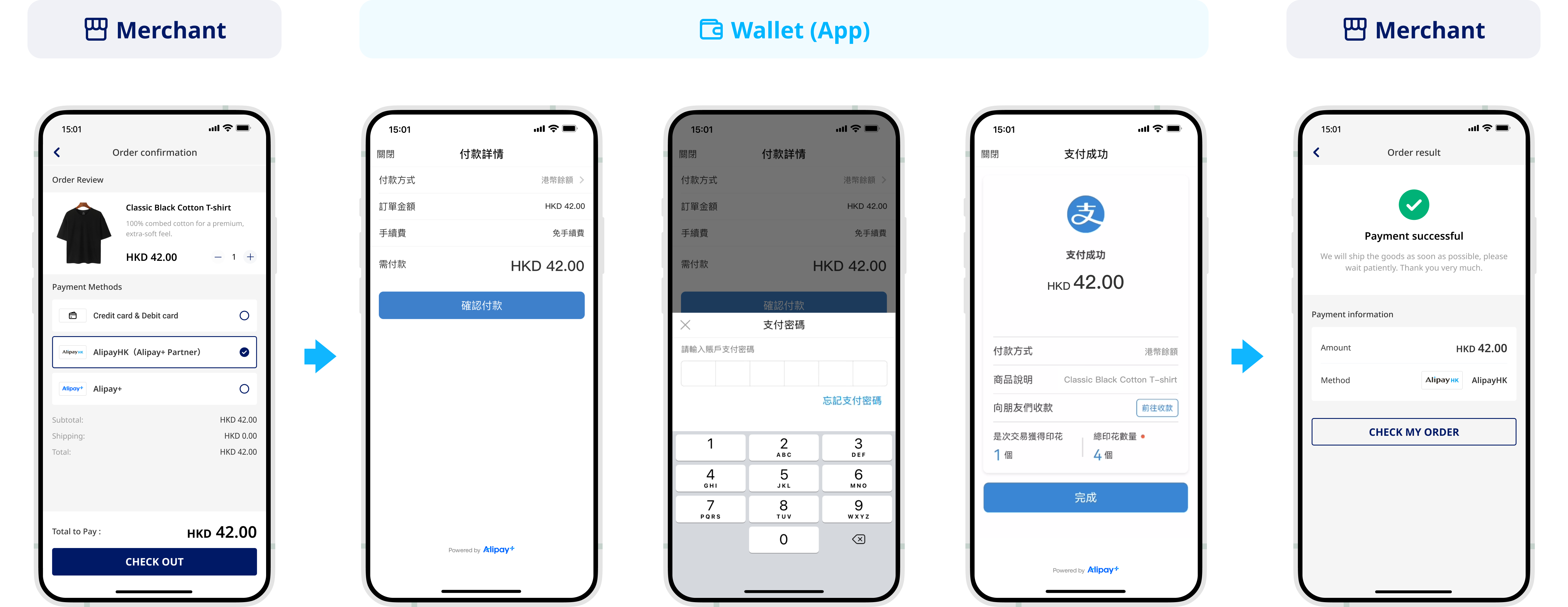
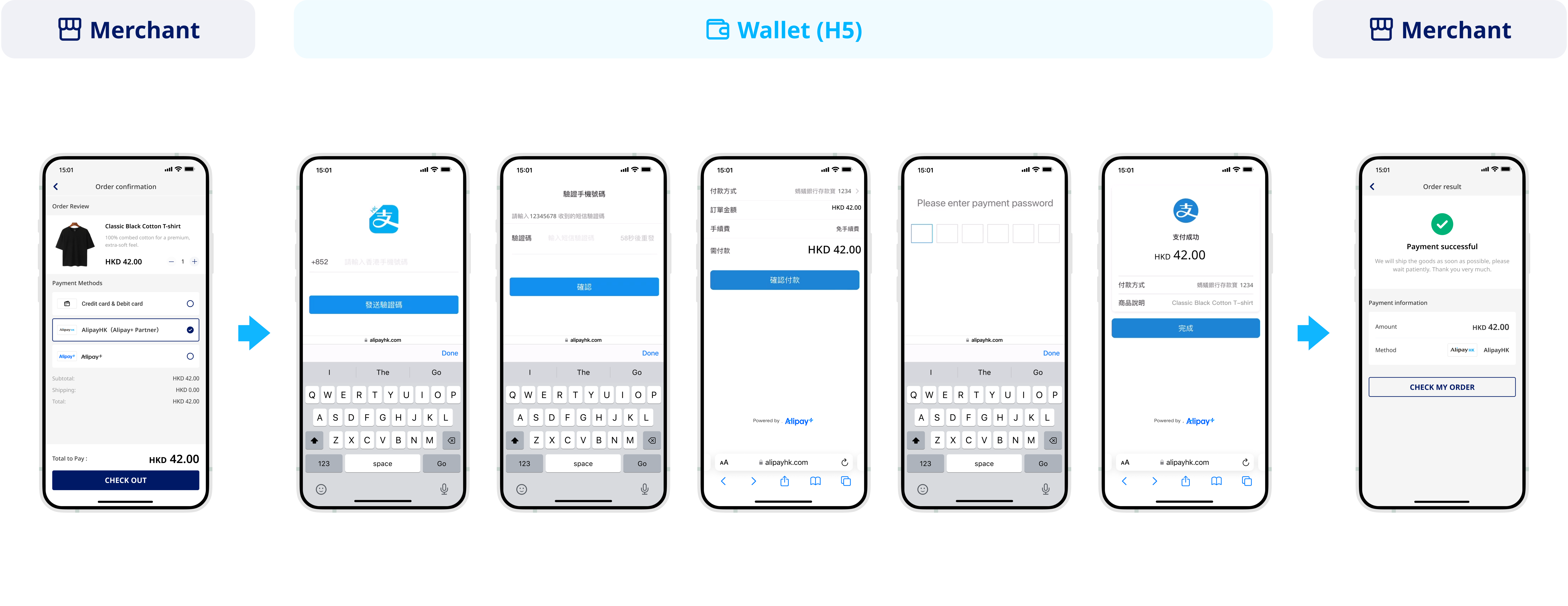
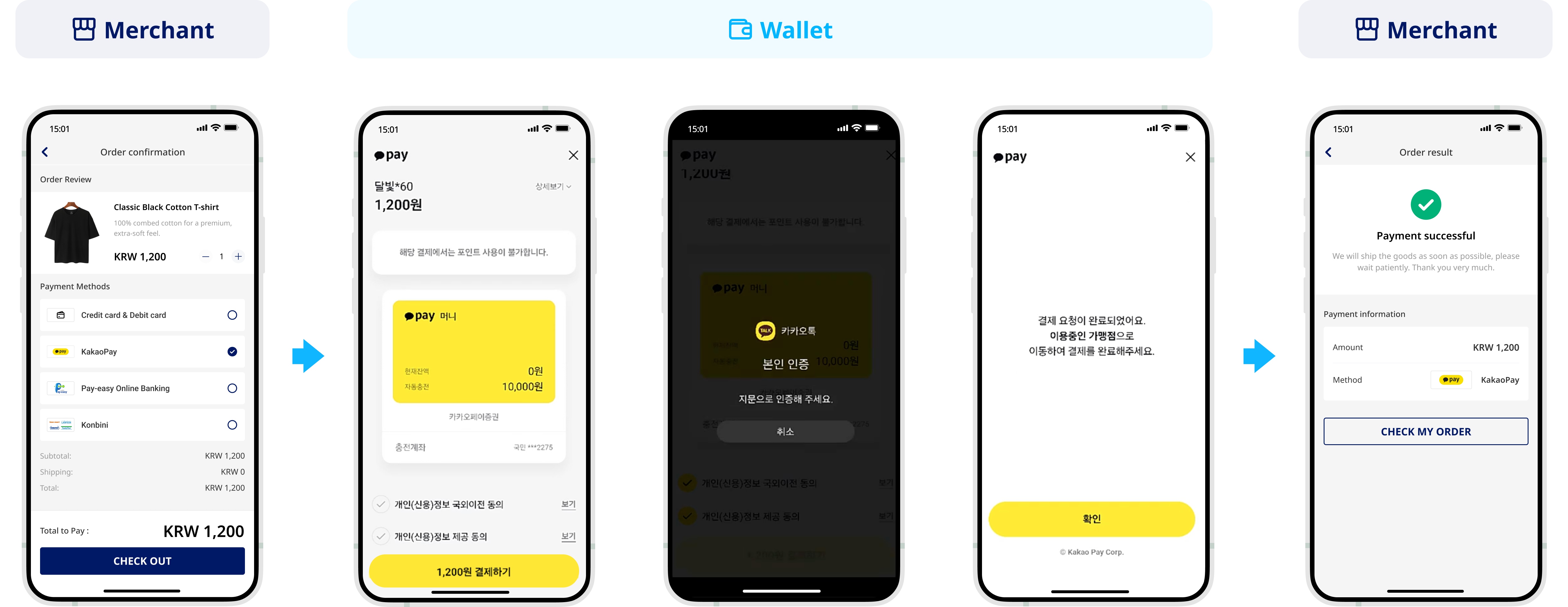
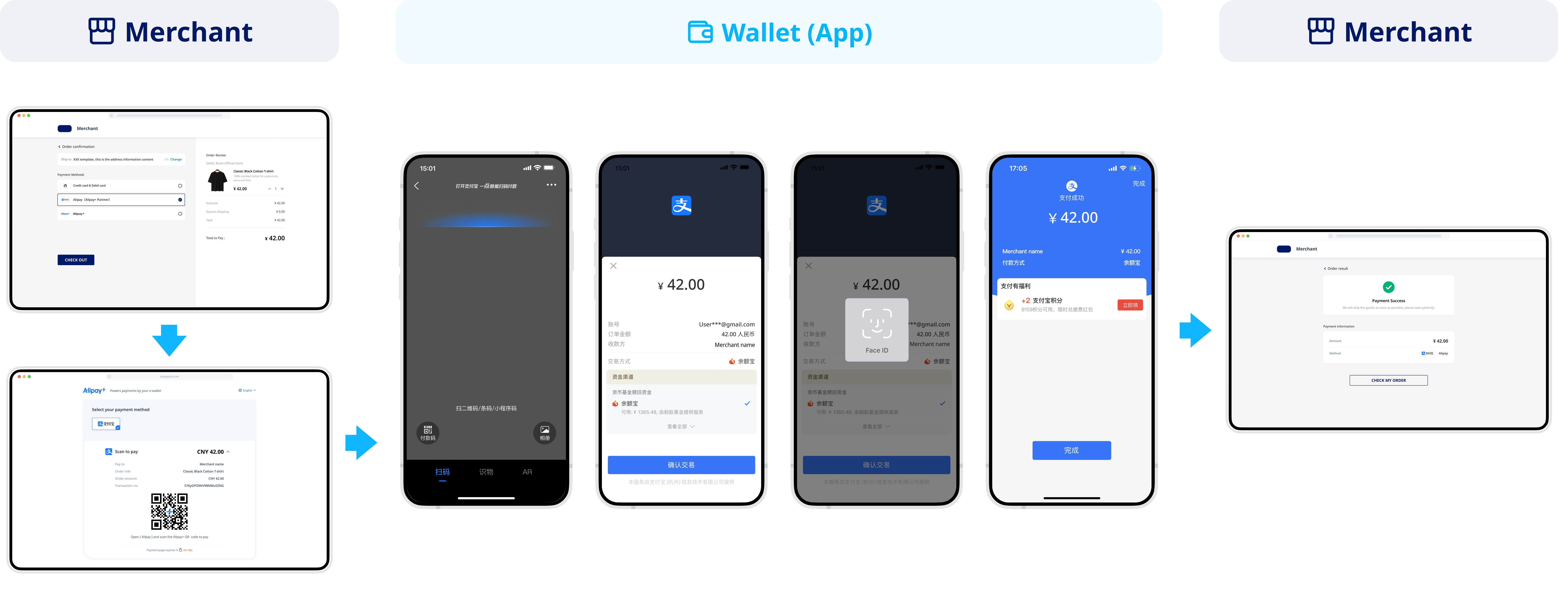
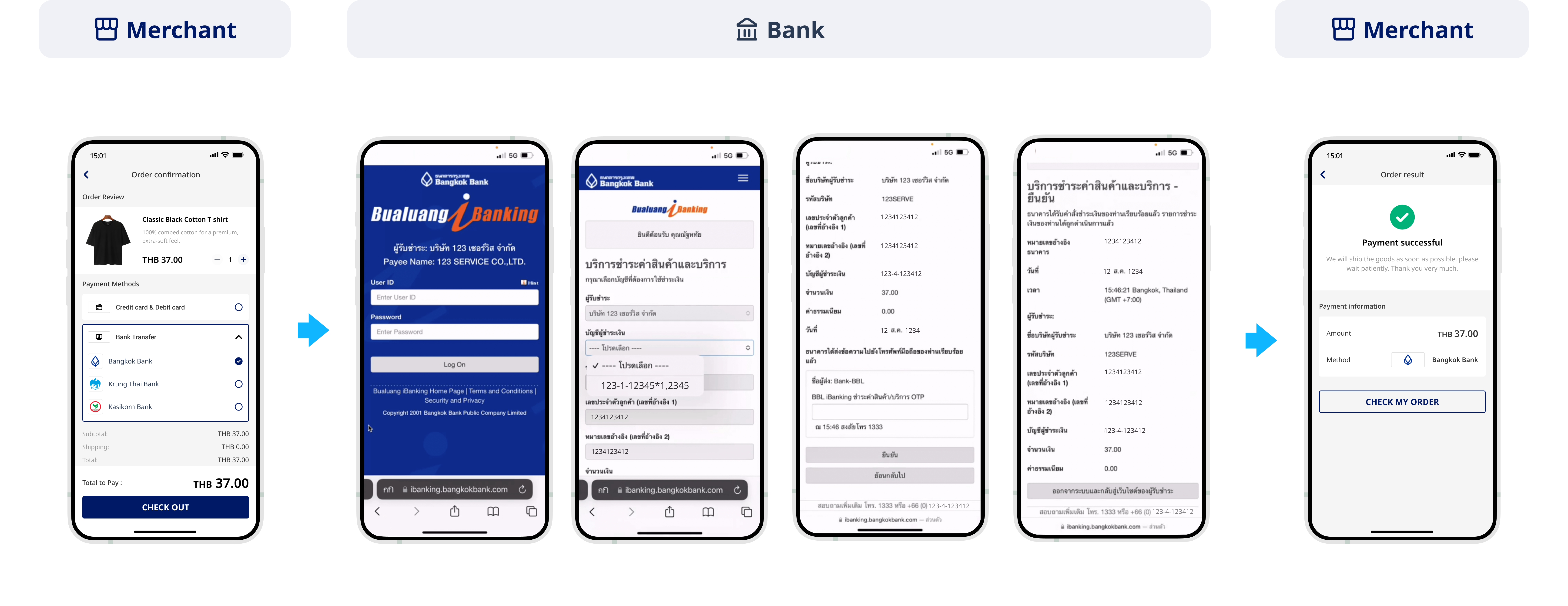
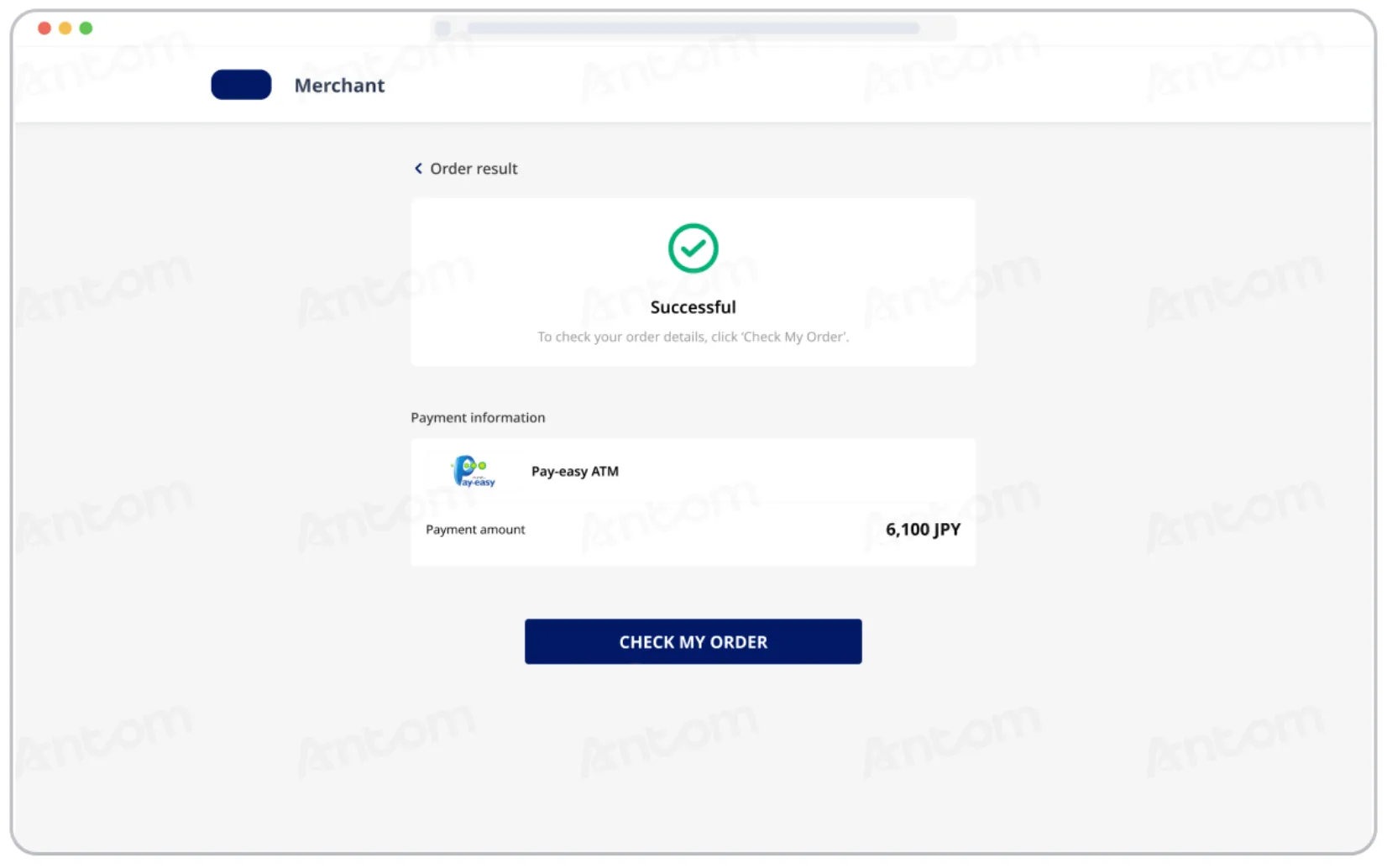
The paymentRedirectUrl field you specified in the pay (One-time Payments) API provides an HTTPS address, which is used to display the payment results on the merchant side. The following is an example of your payment results page:
Common questions
Q: How to handle different payment experiences?
A: You are not required to handle the experience of each payment method. However, redirection from the front end page to the normalUrl address is required. normalUrl will render the experience for each payment method and complete the payment process accordingly.
Q: How to display the payment result page?
A: In the case of successful or failed payments, you may be able to redirect back to the merchant page from the payment method side. To avoid misunderstandings, refer to the result returned by the Antom server, and do not fix paymentRedirectUrl to the payment successful page. If the transaction is initiated from the app platform, set paymentRedirectUrl as the merchant app scheme URL.
Q: Does redirecting to the results page mean the payment was successful?
A: The result page cannot be used as the basis for judging whether the payment is successful. There may be the following scenarios that cause the failure of the redirection to the merchant page:
- After making a successful payment, the buyer may not be redirected to the result page due to network or other reasons.
- If the buyer has not completed the payment, the buyer may be redirected back to the merchant page via the payment method side.
- Antom will not specify information that represents the payment result in the paymentRedirectUrl field.
Step 4: Obtain the payment result
When the buyer completes payment or the payment times out, you can obtain the corresponding payment result through Antom asynchronous notification or by actively querying the payment result.
The response obtained from asynchronous notification and inquiryPayment contains the authorization payment result and other key information, such as:
API | Authorization result | AVS information | CVV information | 3DS authentication information |
resultStatus | avsResultRaw | cvvResultRaw | threeDSResult (only available for 3DS authentication authorization) | |
paymentStatus | avsResultRaw | cvvResultRaw | threeDSResult (only available for 3DS authentication authorization) |
Receive asynchronous notifications
When a payment is completed or fails, Antom sends an asynchronous notification (notifyPayment) to the address that you specified in the pay (One-time Payments) API via the paymentNotifyUrl parameter.
- You can choose one of two ways to set an address to receive notifications:
- If each of your orders has a unique notification URL, it is recommended to set the notification URL in each request. You can specify the asynchronous notification address through the paymentNotifyUrl field of the pay (One-time Payments) API.
- If all your orders share a unified notification URL, you can set the notification URL in Antom Dashboard > Developer > Notification URL. Refer to Notification URL for more details.
Note: If the URL is specified in both the request and Antom Dashboard, the value in the request takes precedence.
The following key parameters are included in the payment notification.
| Parameter name | Required | Description |
resultStatus | Yes | Indicates the status of the order payment result. |
paymentRequestId | Yes | A unique ID generated by the merchant. |
paymentAmount | Yes | Payment amount. |
For more information about the complete parameters, refer to notifyPayment.
The following is the notification request sample code:
{
  "notifyType": "PAYMENT_RESULT",
  "result": {
    "resultCode": "SUCCESS",
    "resultStatus": "S",
    "resultMessage": "success"
  },
  "paymentRequestId": "2020010123456789XXXX",
  "paymentId": "2020010123456789XXXX",
  "paymentAmount": {
    "value": "8000",
    "currency": "EUR"
  },
  "paymentCreateTime": "2020-01-01T12:01:00+08:30",
  "paymentTime": "2020-01-01T12:01:01+08:30"
}
The table shows the possible values that the result.resultStatus field in the asynchronous notification of payment results may return. Handle the result according to the guidance:
result.resultStatus | Message | Further actions |
| The payment is successful. | The following field information is available:
|
| The payment is failed. | Close the current transaction order, or replace the paymentRequestId and initiate a payment request again. |
Note: When a payment is completed or fails, the merchant server receives an asynchronous notification. However, when some failure scenarios (such as parameter exceptions) occur, the pay (One-time Payments) API returns
Fsynchronously, and Antom does not send an asynchronous notification. You can directly close the order according to the returnedFstatus.
- When you receive an asynchronous notification from Antom, you are required to return the response in the Sample code format, but you do not need to countersign the response.
Inquire about the result
You can get the corresponding payment result from the Antom asynchronous notification or by actively inquiring the payment result. Call the inquiryPayment API to inquire about the payment result by specifying the following parameters:
| Parameter name | Required | Description |
paymentRequestId | No | The unique ID that is assigned by a merchant to identify a payment request. |
For more information about the complete parameters, refer to the inquiryPayment API.
The following is the sample code for calling the inquiryPayment API:
public static void inquiryPayment() {
    AlipayPayQueryRequest alipayPayQueryRequest = new AlipayPayQueryRequest();

    // replace with your paymentRequestId
    alipayPayQueryRequest.setPaymentRequestId("yourPaymentRequestId");

    AlipayPayQueryResponse alipayPayQueryResponse = null;
    try {
        alipayPayQueryResponse = CLIENT.execute(alipayPayQueryRequest);
    } catch (AlipayApiException e) {
        String errorMsg = e.getMessage();
        // handle error condition
    }
}
The following is a request example:
{
    "paymentRequestId": "REQUEST_20250327164938236"
}
The following code is the sample response:
{
  "actualPaymentAmount": {
    "currency": "THB",
    "value": "299"
  },
  "paymentAmount": {
    "currency": "THB",
    "value": "299"
  },
  "paymentId": "20250217194010800100188760278262487",
  "paymentMethodType": "TRUEMONEY",
  "paymentRedirectUrl": "https://kademo.intlalipay.cn/melitigo/Test_114.html",
  "paymentRequestId": "3IOS47F3C9B7D96",
  "paymentResultCode": "SUCCESS",
  "paymentResultMessage": "success.",
  "paymentStatus": "SUCCESS",
  "paymentTime": "2025-02-17T08:06:43-08:00",
  "pspCustomerInfo": {
    "pspName": "TRUEMONEY"
  },
  "result": {
    "resultCode": "SUCCESS",
    "resultMessage": "success.",
    "resultStatus": "S"
  }
}
Please handle the result based on the value of the paymentStatus parameter in the response. For specific return values, refer to the API documentation.
Common questions
Q: What fields should be consumed when calling the inquiryPayment API?
A: Pay attention to these key parameters:
- result: Indicates the result of the inquiryPayment API call, the result of the order needs to be judged according to paymentStatus:
SUCCESSandFAILrepresent the final result.PROCESSINGrepresents the processing.
- paymentAmount: Indicates the payment amount.
Q: What is the recommended interval for initiating a query?
A: Call the inquiryPayment API constantly with an interval of 2 seconds until the final payment result is obtained or an asynchronous payment result notification is received.
After payments
The following describes how to initiate transaction cancellations, and refund through Antom server after payments, helping you achieve a stable and reliable payment management experience.
Cancel
For orders completed with successful payment, if the buyer requests a cancellation or refund within the same day, you can cancel or unfreeze the order status through the cancel API provided by Antom. In addition, you can directly cancel orders that have not been paid. Refer to Cancel for more information on how to cancel an order.
Refund
After the transaction is paid successfully, you can initiate a refund through the following two ways:
- Refund using the refund API: You can initiate a refund for a successfully paid transaction by calling the refund API.
- Refund in Antom Dashboard: For more information about how to issue a refund and view the refund result, see Initiate a refund.
The refund capabilities supported by Antom are as follows:
- Support full refunds.
- Support partial multiple refunds. The total amount of multiple refunds must be less than or equal to the capture amount.
Refer to Refund for more information on refund integrations.
Payment method features
This section aims to explain the differences in the supported features of each payment method.
Cancellation capability
The cancellation period varies for different payment methods. For details, refer to Cancel.
Refund capability
Refund capabilities differ among payment methods, primarily in whether refunds are supported and the timeframe for which they are supported. For more information on refund capabilities, refer to payment methods.
Default order closing time
The following is the default timeout for different payment methods.
Payment method | Default timeout |
LinkAja | 5 minutes |
Alipay, AlipayHK, DANA, Kredivo, ShopeePay, Boost, Bancontact, Pix, Pagaleve, OVO, JKOPay, GoPay, Touch'n Go eWallet, Grabpay, FPX, iDEAL | Wero, BPI, GCash, BillEase, Maya, UnionBank, PayU, P24, BLIK, PayNow, Kakao Pay, NAVER Pay, Toss Pay, Express Bank Transfer, LINE Pay, TrueMoney, KrungThai Bank, Siam Commercial Bank, Bangkok Bank, Bank of Ayudhya, Kbank, Promptpay, K PLUS, ZaloPay, MoMo, MPay, QRIS, PayPay, Paidy, dBarai, QRPH, Rakuten Pay, PayMe, au, SoftBank | 14 minutes |
Bank Transfer via VietQR | 15 minutes |
BANCOMAT Pay | 1 hour |
Maybank, BNI, Permata, CIMB Niaga VA, ATM Bersama/Prima/Alto, KrungThai Bank, Siam Commercial Bank, Bangkok Bank, Bank of Ayudhya, Kbank, Government Savings Bank | 48 hours |
Mercado Pago, Card, Konbini, Konbini (7-Eleven), Pay-easy, Pay by Bank, Guaranteed ACH | 7 days |
Integration features
Learn about the integration key considerations and recommended solutions for different payment methods.
| Payment method | Key points | Recommended solution |
| PayPay |
| paymentRedirectUrl should be no longer than 255 characters. |
| QRIS | Payment discrepancy may occur. | When payment discrepancies occur (such as the buyer makes a payment but you receive a notification of payment failure), once Antom receives a payment success message from the corresponding payment method, Antom will settle the funds to you. After you receive the funds, you can manually handle any subsequent refunds. The corresponding settlement details report will include this transaction. |
| Promptpay | Payment discrepancy may occur. | |
| Konbini, Konbini (7-Eleven), Pay-easy |
| |
| Maybank | Once the payment is completed, there may be a 5-minute delay in sending the asynchronous notification. | Display a prompt message, "Order is confirming" to buyers. |
| OVO, Pix, BANCOMAT Pay | The payment method app cannot be launched automatically. | The buyer must manually launch the payment method app to complete the payment. |
| Siam Commercial Bank |
| Prompt the buyer that a processing fee may be applied to payments made using the payment method. The fee amount is determined by the buyer's bank level. |
| Bank of Ayudhya |
| Prompt the buyer that a processing fee may be applied to payments made using the payment method. The fee amount is determined by the buyer's bank level. |
| GoPay, Bangkok Bank, KrungThai Bank | Not supported on PC. | None |
| NAVER Pay | The PC client requires additional integration. After the buyer logs in, payment is not completed directly on the original page, but is automatically redirected to a new tab. | Enable browser pop-up permissions and use a new browser object or window in the code to open the pop-up page to process the payment. |
| Express Bank Transfer | paymentRedirectUrl has restrictions on special characters. | Avoid using the "&" symbol in paymentRedirectUrl. |
| Mercado Pago (Brazil) | The buyerEmail parameter is consumed, resulting in a direct failure of the payment. | Specify the payerEmail parameter instead. |