
Antom reconciliation expert Skill
Antom reconciliation expert Skill is a locally-run AI reconciliation assistant that integrates with Antom CLI to automatically retrieve your required reports data, perform financial analysis, and provide reconciliation knowledge Q&A services, embedding Antom into your local AI workflow.
Notes:
- Data security: The Skill runs entirely locally. All report parsing and verification logic is completed on your computer. Report data is not uploaded to any external servers.
- Online reports download: Skill automatically exports reports from the cloud and does not involve reverse uploading of local reports.
- Knowledge base rule: All reconciliation-related answers provided by Skill are based only on Antom’s official knowledge base and local parsing results. If a question is not covered, Skill will prompt to contact Antom Technical Support.
- CDN hot updates: Business rules, constraints, and the knowledge base are automatically synchronized. You do not need to reinstall the Skill.
- Version upgrade: Skill automatically checks for updates at the start of each session. Simply overwrite the original directory during reinstallation, and no need to manually uninstall the old version.
- Conclusion review: The results of the amount verification and discrepancy analysis are for reference only. It is suggested that the finance staff conducts a final review in combination with the specific business scenario.
- Supported document types: This Skill currently only supports Settlement details reports. The file name must contain both
SETTLEMENTandDETAIL, and the format must be .csv or .xlsx.
Core capability
The reconciliation Skill supports the following capabilities:
Capability | Description |
Report retrieval and download | After entering a date range, Skill can directly query report lists online via Antom CLI, download report files, and execute the full process of parsing and verification—initiating end-to-end reconciliation with a single command. |
Transaction detail query | By entering a transaction ID, Skill automatically retrieves the complete transaction lifecycle (including authorization, capture, settlement, and refund) from Antom and cross-references it with the settlement report to complete reconciliation. |
Settlement amount verification | Verify each transaction to check the net settlement amounts (transaction amounts − fees) matches the report, quickly locating transaction records with discrepancies. |
Fee breakdown & analysis | View the summary of fees (e.g., processing fees, exchange rate fees, refund fees), categorizable by transaction type or payment method. |
Abnormal transaction identification | Automatically locates abnormal transactions, such as amount mismatches, missing fields, and duplicate reconciliation records. |
Reconciliation knowledge Q&A | Built-in knowledge base of Antom report fields, billing modes, and settlement cycle, allowing you to ask direct reconciliation-related questions without uploading files. |
Local privacy protection | All data processing occurs locally on your device, and sensitive report information is not uploaded to any external server. |
Automatic rate model recognition | Skill automatically identifies the rate model used for transactions (such as IC++ or Blended Rate), eliminating the need for manual specification. |
Cross-currency conversion and validation | Skill automatically recognizes transaction and settlement currencies, performs currency conversion based on exchange rates, and cross-checks the amounts with the report. Transactions with discrepancies beyond the threshold are automatically flagged. |
Installation steps
Choose one of the following ways to complete the installation.
Conversational installation with Agent
This method allows AI tools to install the Skill according to the command. Enter the following command on the AI tool page and press Enter to execute. Taking ChatGPT as an example, the installation process is as follows:
Install skill, address:https://github.com/ant-intl/antom-ai-tools/tree/main/skills/antom-reconciliation-expert. for local use only.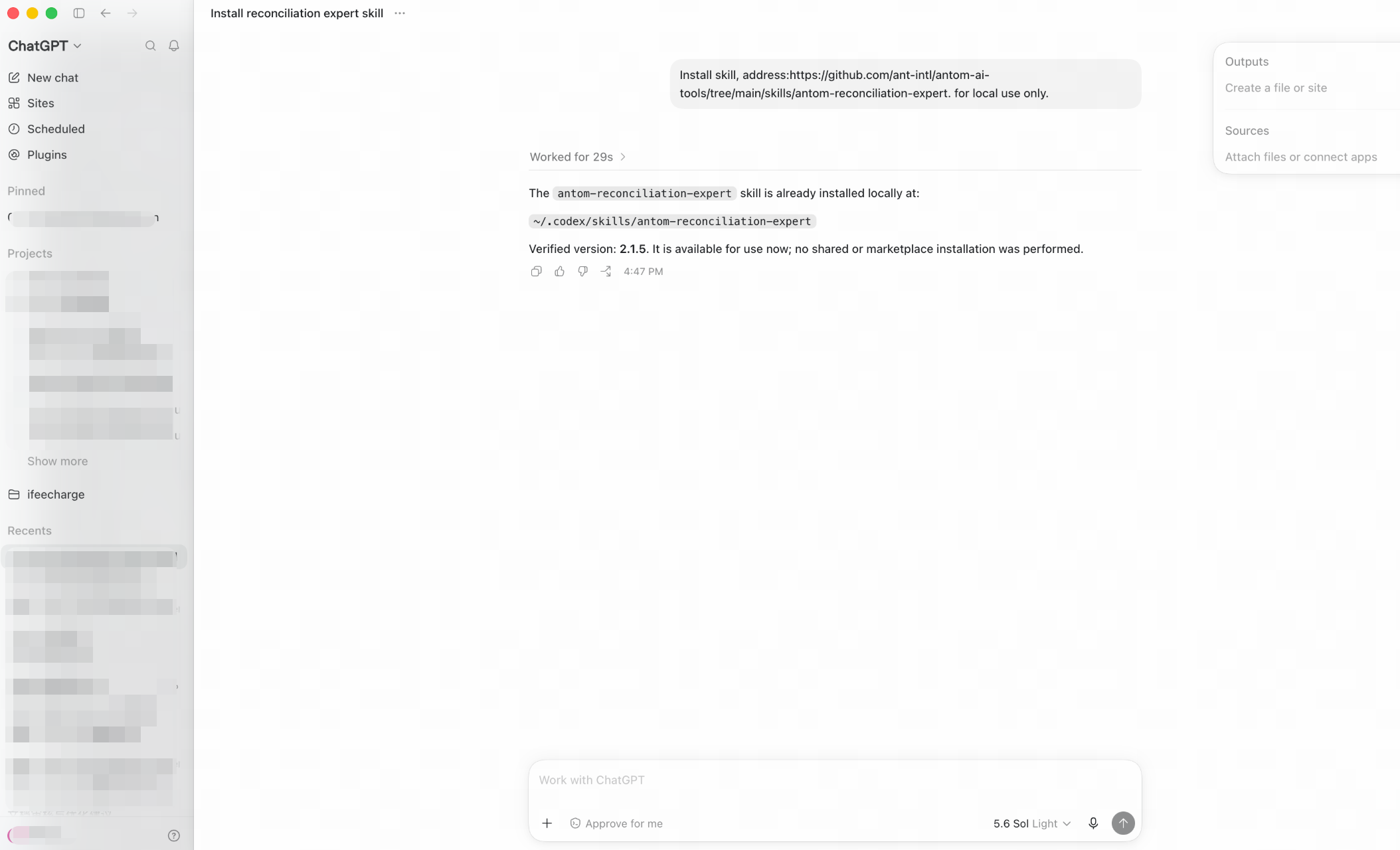
Command line installation
Steps for different operating systems are as follows:
macOS
Open Terminal (open Launchpad > search for "Terminal"), copy the entire command below and paste it into the terminal's input box, and press Enter to execute.
mkdir -p ~/.agents/skills && rm -rf ~/.agents/skills/antom-reconciliation-expert && mkdir ~/.agents/skills/antom-reconciliation-expert && curl -sL https://github.com/ant-intl/antom-ai-tools/archive/main.tar.gz | tar xz --strip-components=3 -C ~/.agents/skills/antom-reconciliation-expert antom-ai-tools-main/skills/antom-reconciliation-expert && echo 'SUCCESS: antom-reconciliation-expert install succeeded' || echo 'FAILED: Installation failed. Please check your network and try again.'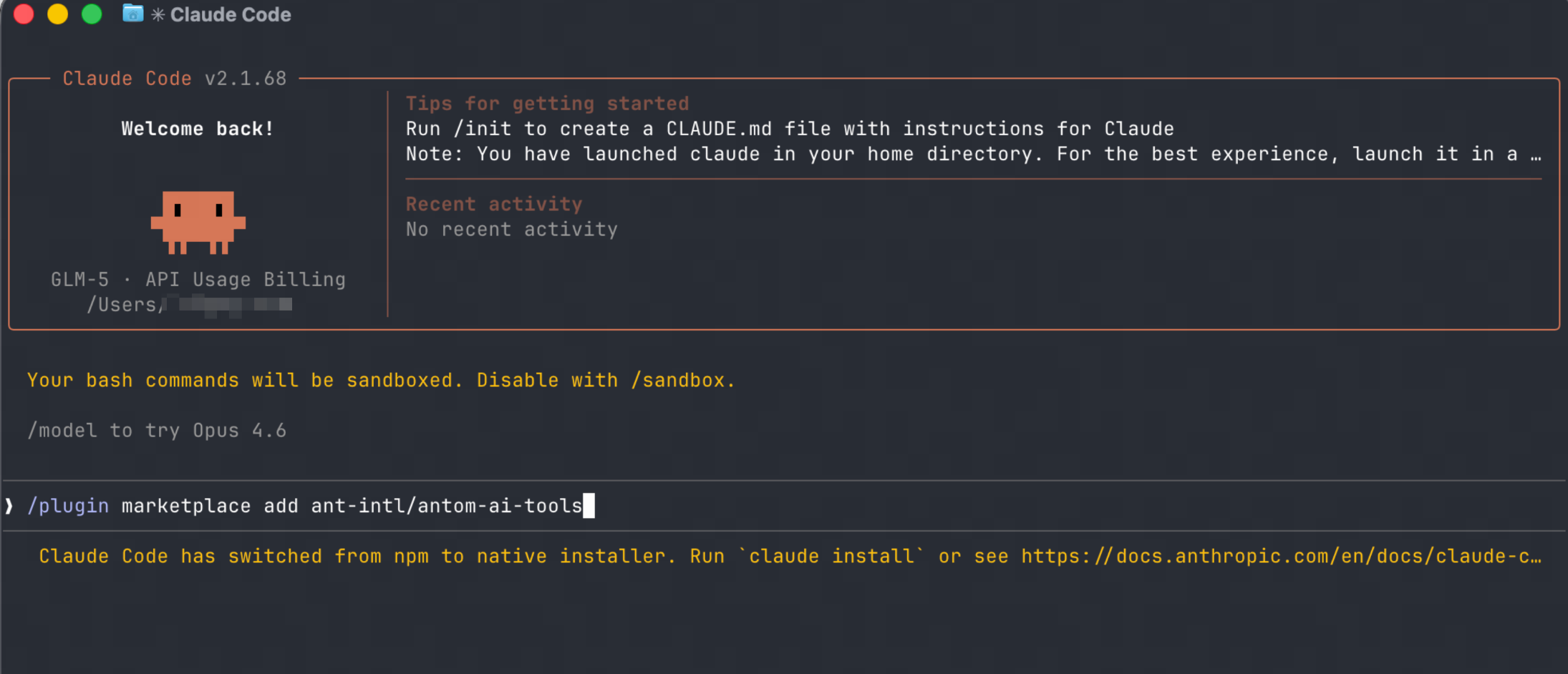
Windows
Run PowerShell (not CMD) as administrator, copy the entire command below and paste it into the PowerShell's input box, and press Enter to execute.
$ProgressPreference='SilentlyContinue';
mkdir -Force "$env:USERPROFILE\.agents\skills" | Out-Null;
Remove-Item -Recurse -Force "$env:USERPROFILE\.agents\skills\antom-reconciliation-expert" -ErrorAction SilentlyContinue;
mkdir "$env:USERPROFILE\.agents\skills\antom-reconciliation-expert" | Out-Null;
Invoke-WebRequest -UseBasicParsing 'https://github.com/ant-intl/antom-ai-tools/archive/main.zip' -OutFile "$env:TEMP\antom.zip";
Expand-Archive "$env:TEMP\antom.zip" "$env:TEMP\antom-extract" -Force;
Copy-Item "$env:TEMP\antom-extract\antom-ai-tools-main\skills\antom-reconciliation-expert\*" "$env:USERPROFILE\.agents\skills\antom-reconciliation-expert" -Recurse;
Remove-Item "$env:TEMP\antom.zip","$env:TEMP\antom-extract" -Recurse -Force;
Write-Host 'SUCCESS: antom-reconciliation-expert install succeeded' -ForegroundColor Green;Manual installation
Follow the page prompts to operate without any command line. The installation step is as follows:
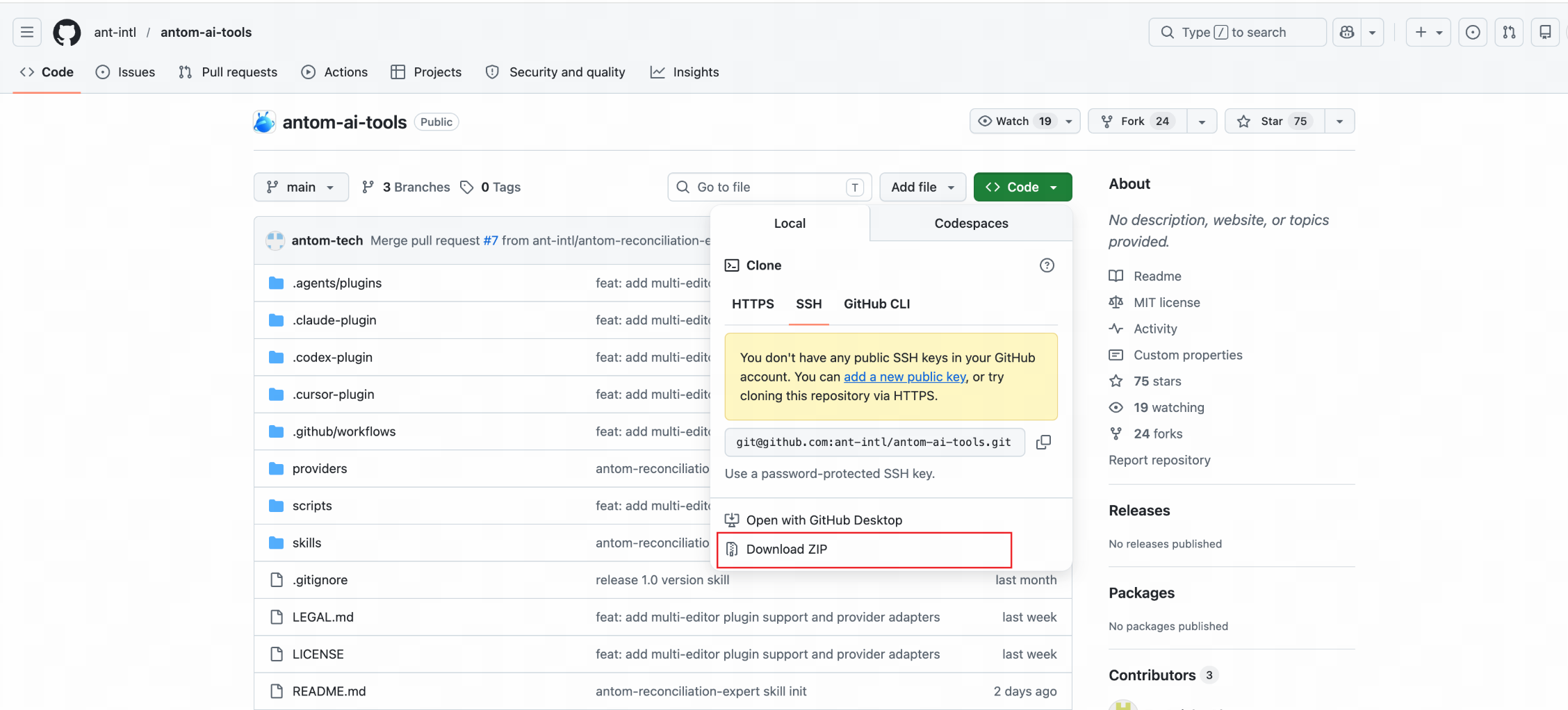
- Download the code package: Open the browser and visit GitHub > Click Code > Download ZIP.
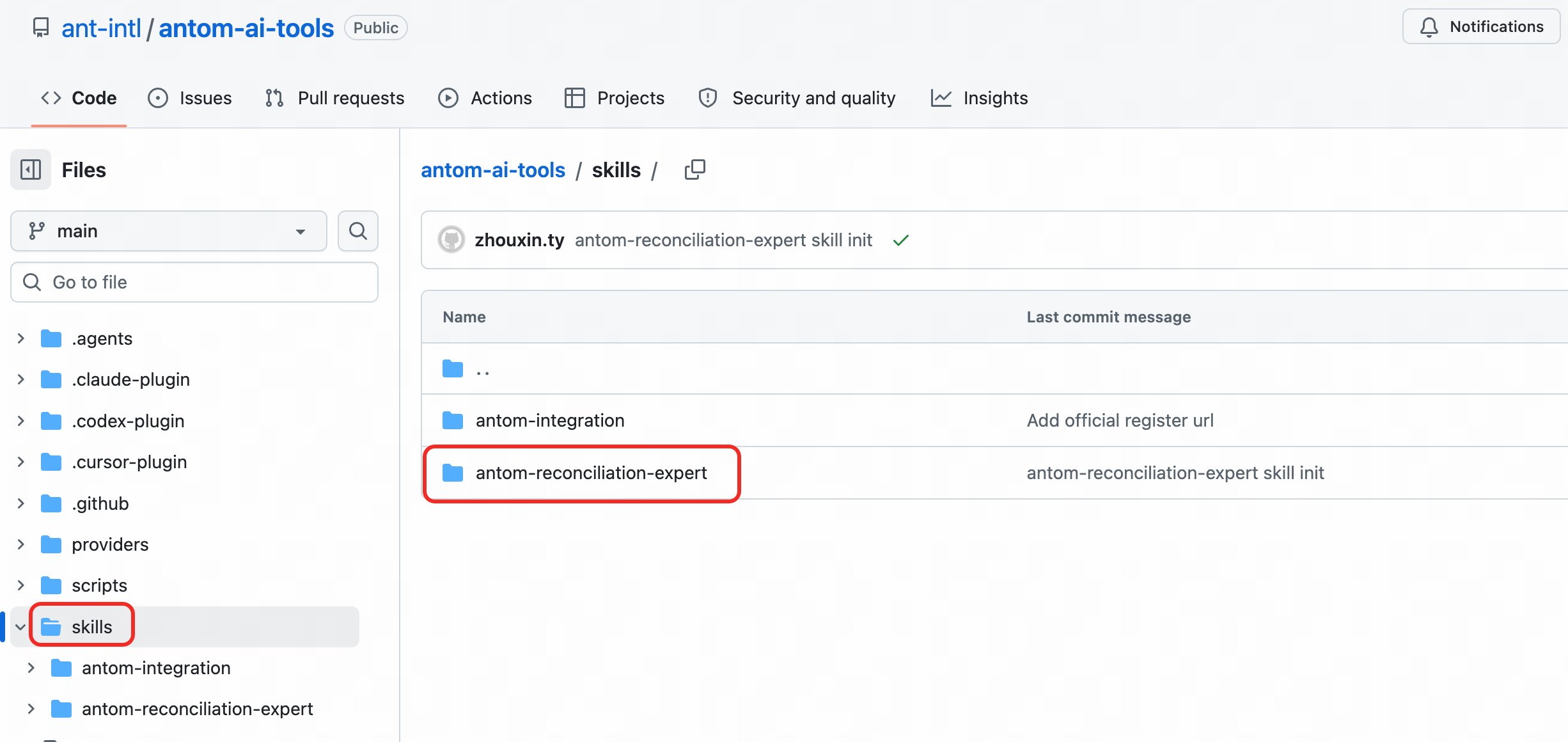
- Unzip and locate: After unzipping, go to the antom-ai-tools-main/skills/ folder, and find the antom-reconciliation-expert folder.
- Place the folder in the installation directory: see the following table for the example steps.
Operating system | Example steps (using ChatGPT as an example) |
macOS |
|
Windows |
|
After the operation is complete, the directory structure should be as follows:
~/.agents/skills/antom-reconciliation-expert/
├── SKILL.md
└── scripts/Note: ~/ represents your user directory. The differences between different operating systems are as follows:
- macOS: /Users/#your username#/
- Windows: C:/Users/#your username#/
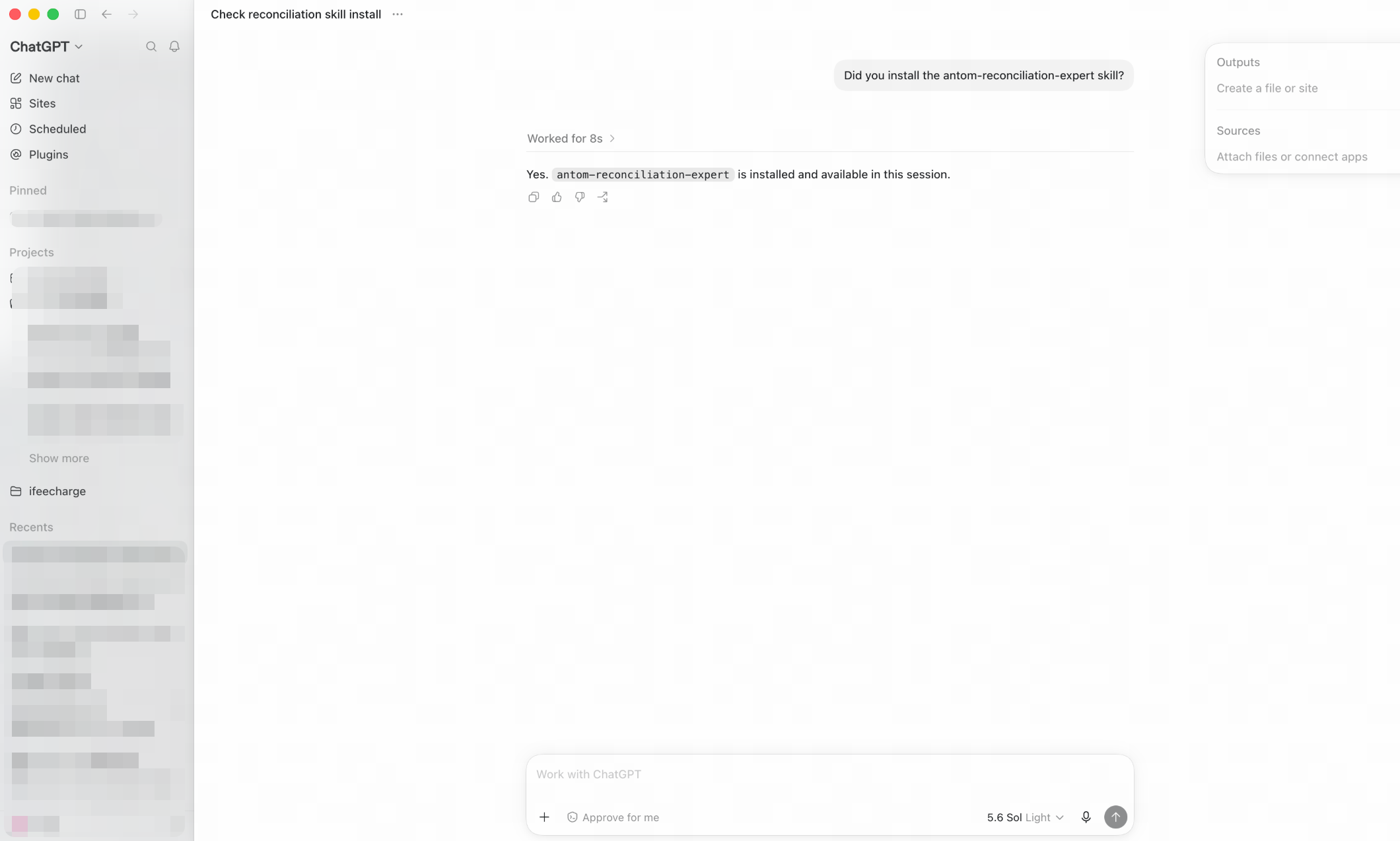
Installation verification
- Once the installation is complete, you can verify it using an AI tool. The following is an example of an interaction using ChatGPT:
- Reports retrieval and download feature requires additional configuration of Antom CLI. You can install and verify it via an AI tool based on prompts. After installation, you need to manually authorize it through a browser. Once authorized, send the 'Done' command to complete the configuration. The following is an example of an interaction using ChatGPT:
$antom-reconciliation-expert Help me complete the antom CLI authorization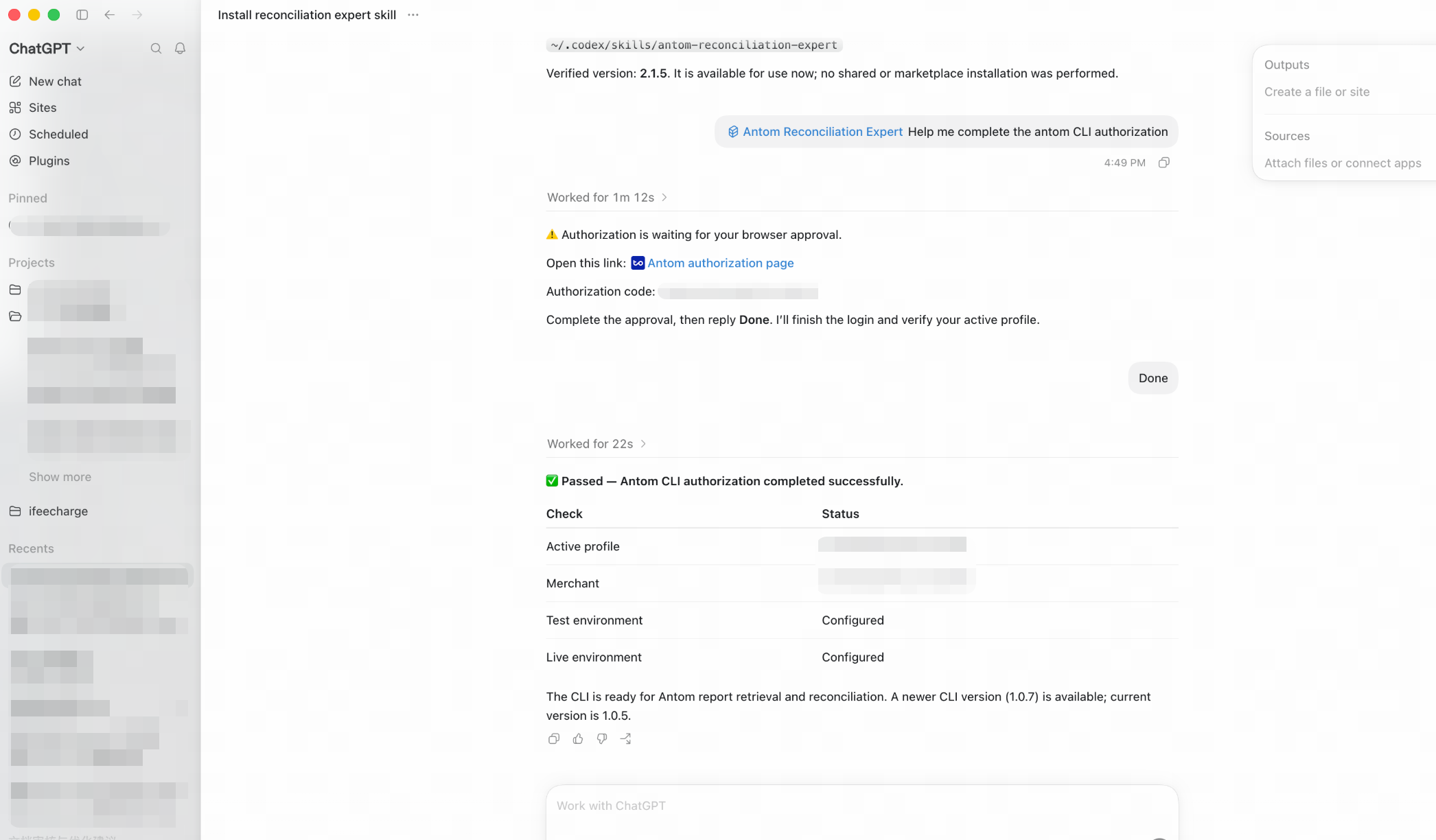
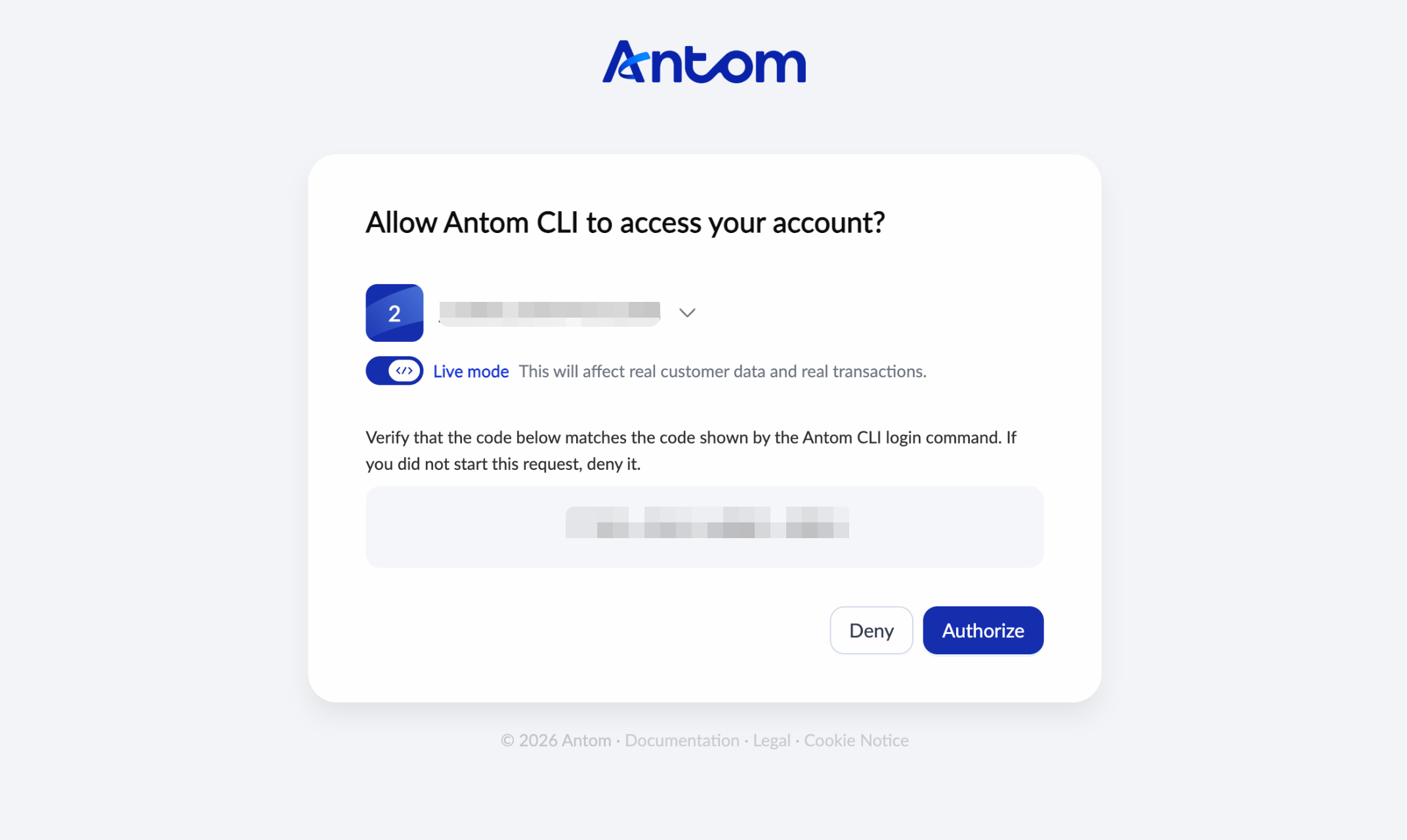
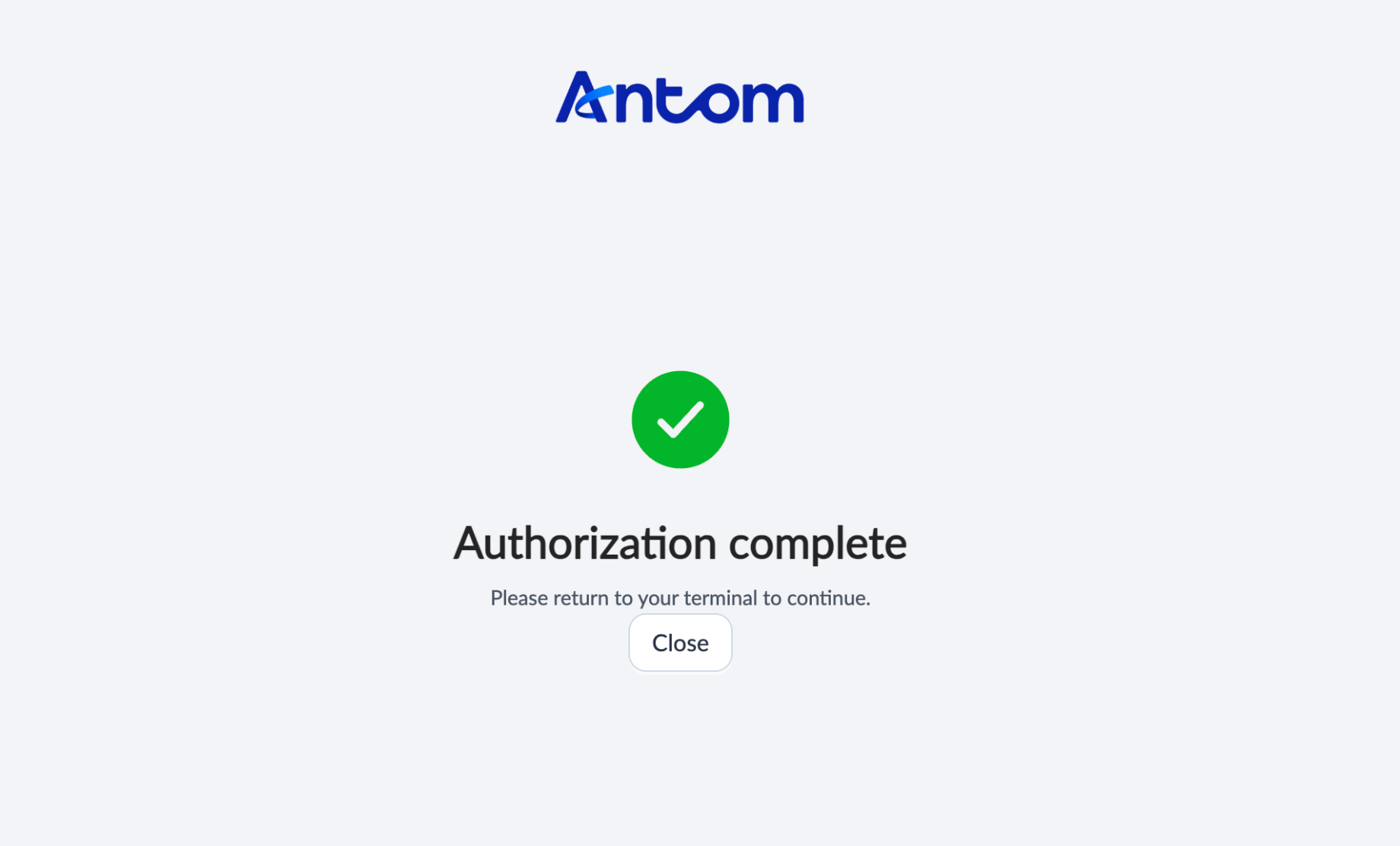
The authorization process through the browser is as follows:
|
|
Usage examples
Describe your requirements using natural language. See the following examples:
Scenario | Description |
Online process analysis | Analyze the settlement details from March 15 to March 25. (Skill will automatically: query report list > download reports > parse data > perform verification > aggregate results > generate a comprehensive financial overview.) |
Transaction detail query | Check the detailed settlement status of this transaction: transactionId=20250710XXXX. (Skill automatically retrieves transaction details and cross-references them with the settlement report.) |
Daily settlement amount verification | Help me verify yesterday's settlement report: ~/Downloads/SETTLEMENT_DETAIL_20260527.xlsx, and check whether the net settlement amounts (transaction amounts − fees) matches the report. |
Fee breakdown & analysis | Analyze the proportion of fees aggregated by payment method in ~/Downloads/SETTLEMENT_DETAIL_20260527.xlsx, and highlight transactions with fees exceeding 3%. |
Discrepancies investigation | Help me verify whether the amount in this settlement report is correct, and analyze possible reasons if there are discrepancies. |
Reconciliation knowledge Q&A | What are the differences between IC++ and Blended Rate billing models? What is the interchangeFee in my report? |
Common questions
Q: Why can't I see antom-reconciliation-expert in the /skills list?
A: The directories under different agents may vary. Taking ChatGPT as an example, check in the following order:
- Check whether the /skills folder in the agent user-level directory contains the antom-reconciliation-expert folder and that the contents inside are correct.
- Make sure there is no extra folder. False example: ~/.agents/skills/antom-reconciliation-expert/antom-reconciliation-expert/.
- Completely exit the AI tool (not just close the window), and reopen it.
Q: What should I do when Windows prompts "Access denied" or fails to create a .agents folder?
A: Use one of the following methods to handle it:
- Press "Win+X", open Windows Terminal or Windows PowerShell as an administrator, and try again.
- Manually create the .agents and skills folders in File Explorer before executing the copy command.
Q: Why is the filename correct but the filename in the report not being parsed?
A: Check whether the report contains the following issues:
- Make sure the filename contains both
SETTLEMENTandDETAIL(case-insensitive), and is in .csv or .xlsx format.- Confirm that the file content includes core settlement columns (such as settlementAmountValue, interchangeFee, etc.). Skill checks whether the file headers meet the core column requirements for Settlement details reports (at least matching the majority of core fields). If the file is a renamed Transaction details reports or Settlement summary reports, Skill will reject parsing and provide specific reasons, such as non-compliant file names or content mismatch.
- If the problem persists, try exporting the report file again from the merchant portal. Refer to Reports for information on how to export reports.
Q: When using the online report retrieval and download feature, I get the error of "antom: command not found". How should I resolve this?
A: The online report retrieval and download feature relies on Antom CLI. Verify the following actions:
- Whether the Antom CLI has been configured.
- Whether you have executed
antom loginto complete the login process. You can useantom whoamito verify your login status.Q: Are the answers in the knowledge base accurate?
A: All reconciliation-related answers provided by Skill are based only on Antom’s official knowledge base (dynamically loaded via CDN), not rely on its own training experience to infer business rules. If a question is not covered in the current knowledge base, Skill will clearly state so and recommend contacting Antom Technical Support, rather than providing unsubstantiated responses.