All transactions
You can complete the following tasks under the Transactions > All transactions module in Antom Dashboard:
- Search for real-time successful transactions
- Export transaction reports
- Process single or batch refunds for successfully paid transactions
- Capture or cancel transactions
Search for transactions
You can search for all successful transaction records under Transactions > All transactions. All transaction information in this module is real-time. You can perform the following operations in the transaction record list on the All transactions page:
- Filter the transaction list
- Customize transaction list fields
- View the transaction details page
- Check the transaction status
Filter the transaction list
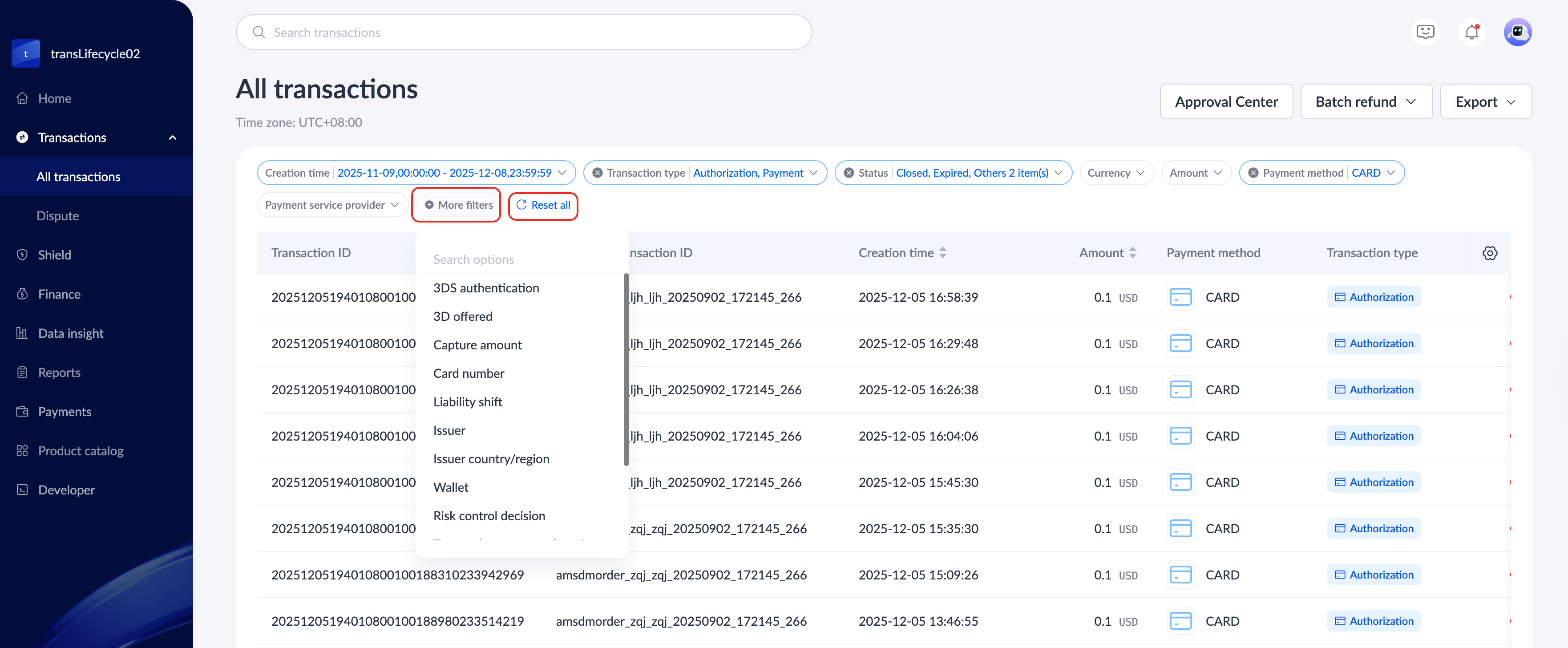
You can filter transactions by Creation time, Currency, Transaction type, and Status. The date range for filtering supports a time span of up to 180 days.
You can also do the following with filter configurations:
Additionally, you can filter the fields of desired transaction details information by clicking Display settings.
- Add more filters: Click More filters to customize the options in the filter fields, and the added options will be displayed after the default options.
- Reset filters: After configuring the filter settings, click Reset all to reset back to the default options.
Customize transaction list fields
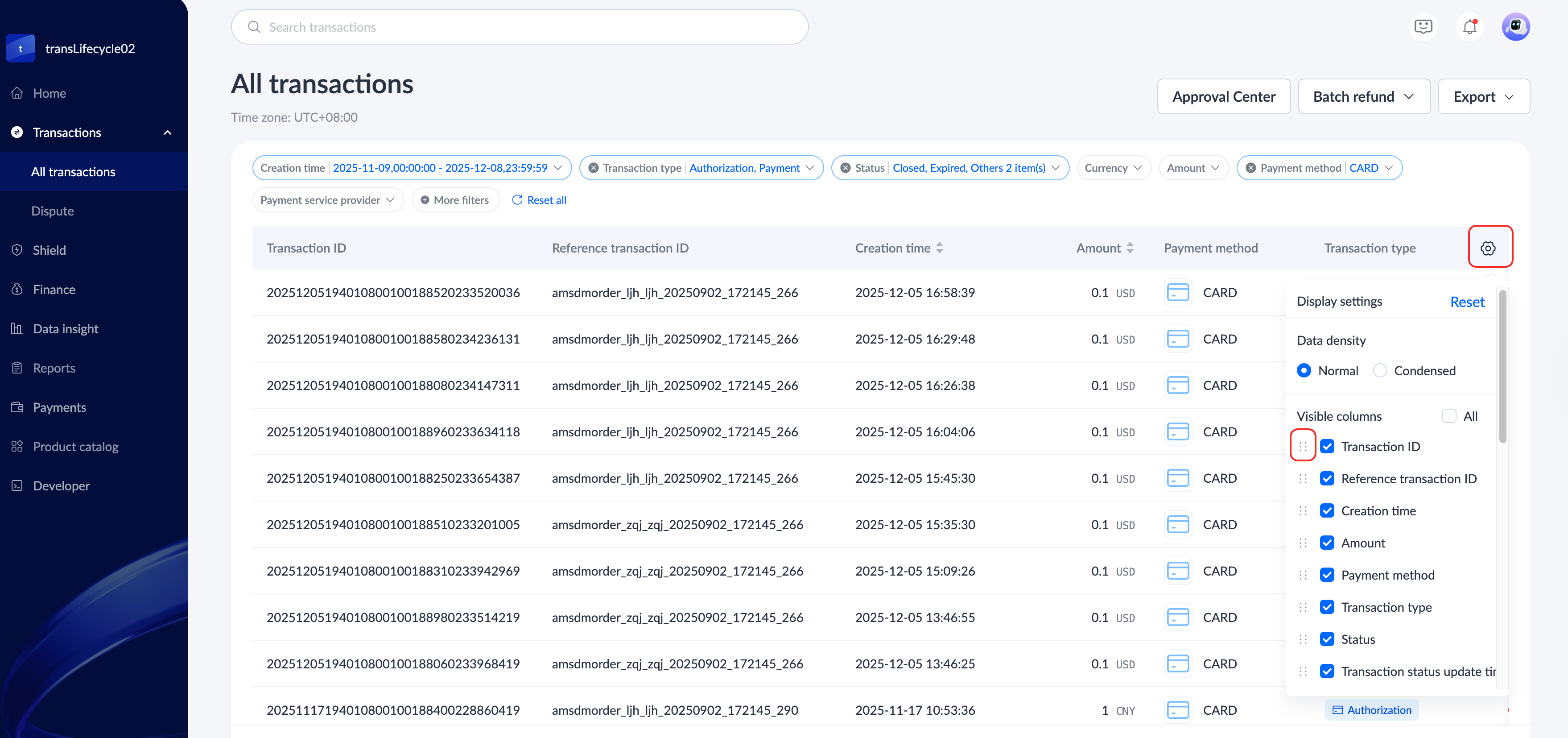
Click the Display settings icon in the top-right corner of the transaction list to set the interval status and display fields of the list, and the checked fields will be displayed in the list header. At the same time, drag a field to change the placement of the field in the list.
View the transaction details page
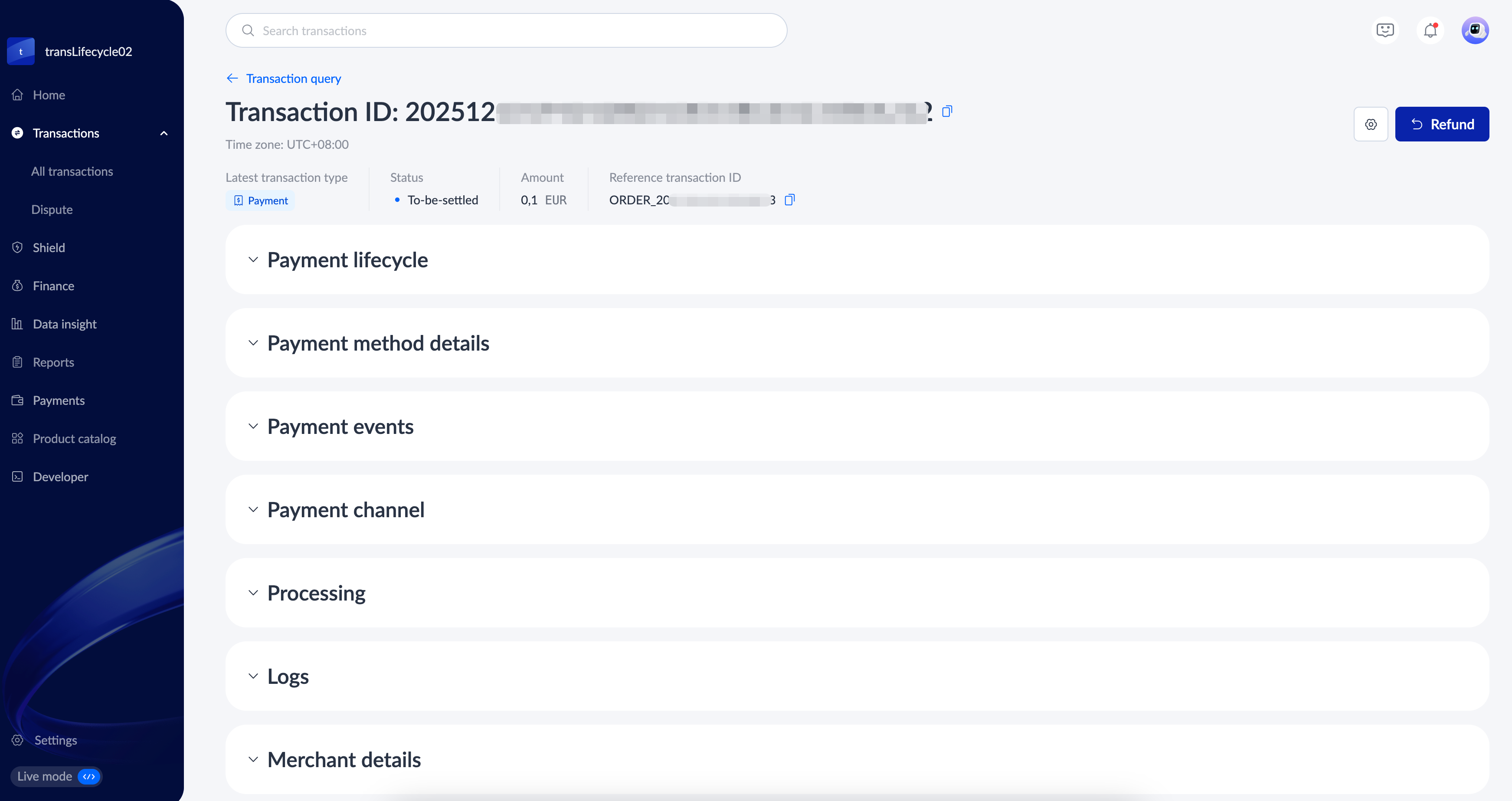
Click any transaction record in the transaction list on the All transactions page to enter the transaction details page. You can view all information related to the transaction on this page, including Payment lifecycle, Payment method details, Payment events, Payment channel, Processing, Logs, Merchant details, 3DS, Shopper details, Recipient address, and Purchased items.
Note: Information that is not supported by this transaction record will not be displayed on this page.
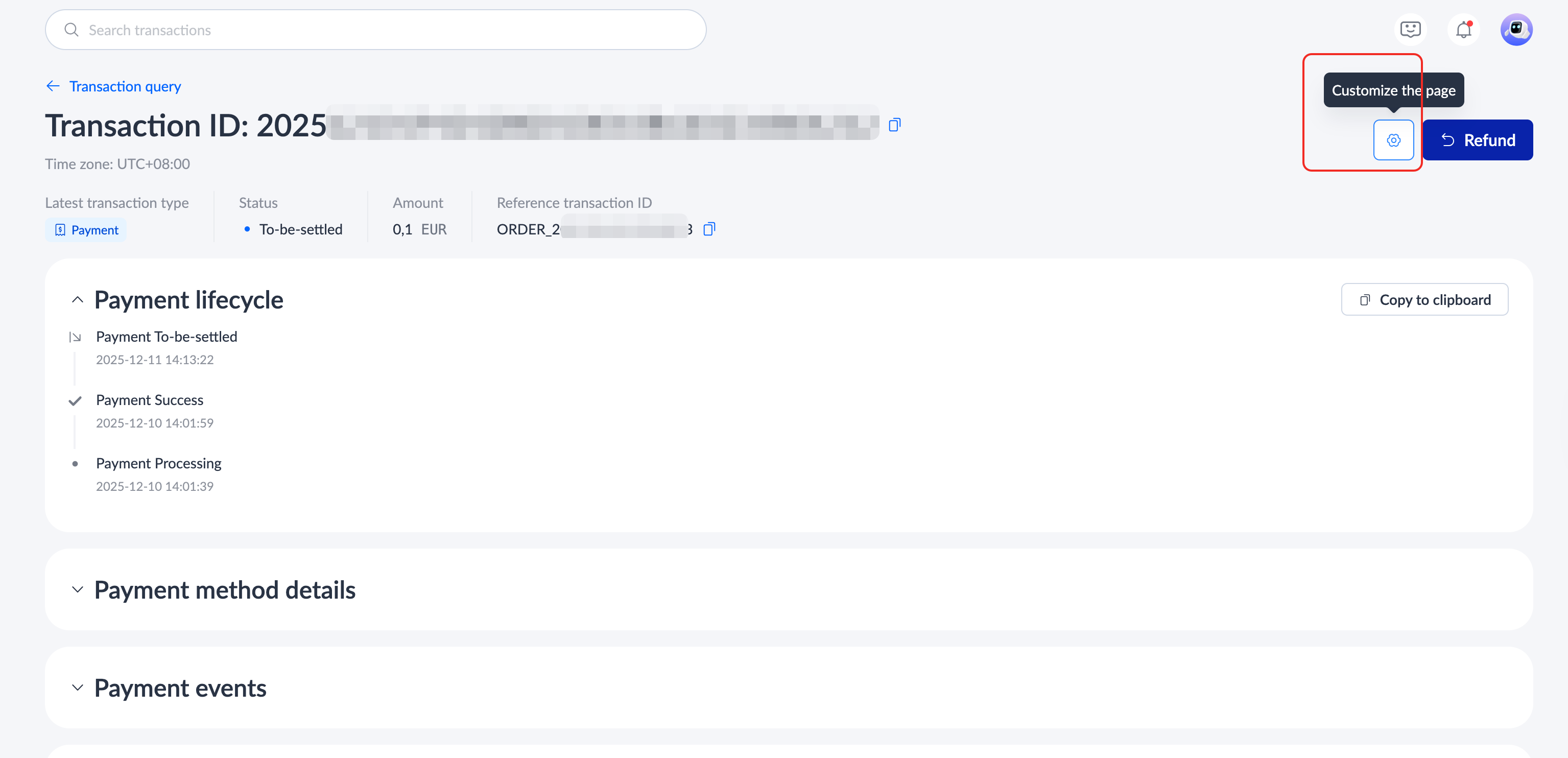
Customize the transaction details page
On the transaction details page, click Customize the page to customize the display position of information in each section of this page, drag to adjust the order, and click Save to complete the adjustment.
|
|

Check the transaction status
A transaction goes through several specific status changes from initiation to completion. You can check the real-time status of a transaction on the All transactions page.
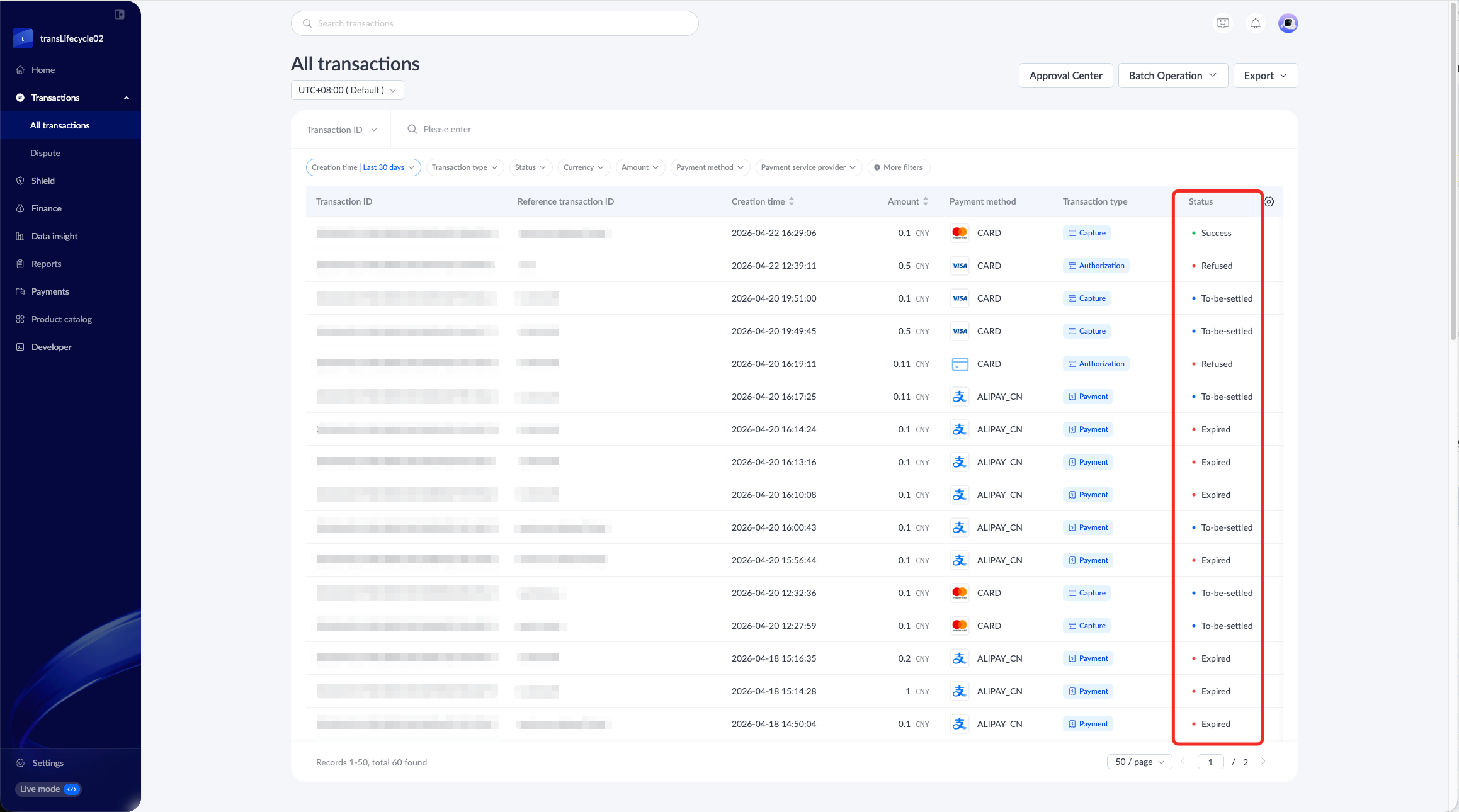
The detailed descriptions of each transaction status are shown in the following table:
| Transaction status | Descriptions |
Processing | The payment is being processed and no final outcome is available yet. |
Success | The order is in a successful status, indicating that the payment has been successfully completed. |
Failed | The payment has failed and cannot proceed. Refer to the reason column for the specific failure information. |
Expired | The order has exceeded its validity period and was automatically closed by the system. |
Closed | The order has been closed due to payment failure, timeout, or user cancellation. No further payment or related actions can be performed on this order. |
Refused | The payment authorization was explicitly declined by the card issuer or acquirers. The transaction failed to obtain authorization and therefore cannot be completed. |
To-be-settled | The funds of this order, after fee netting, enter the to-be-settled account opened by Antom for the merchant and have not yet been settled.
|
Settled | The payout has been successfully initiated in accordance with settlement rules (e.g., settlement cycle and minimum payout threshold). Final fund availability is subject to the processing status of the receiving bank. |
Export transaction reports
Click Export in the upper right corner of the All transactions page. You can perform any of the following operations:
Export the transaction report
Follow the steps below to export transaction reports:
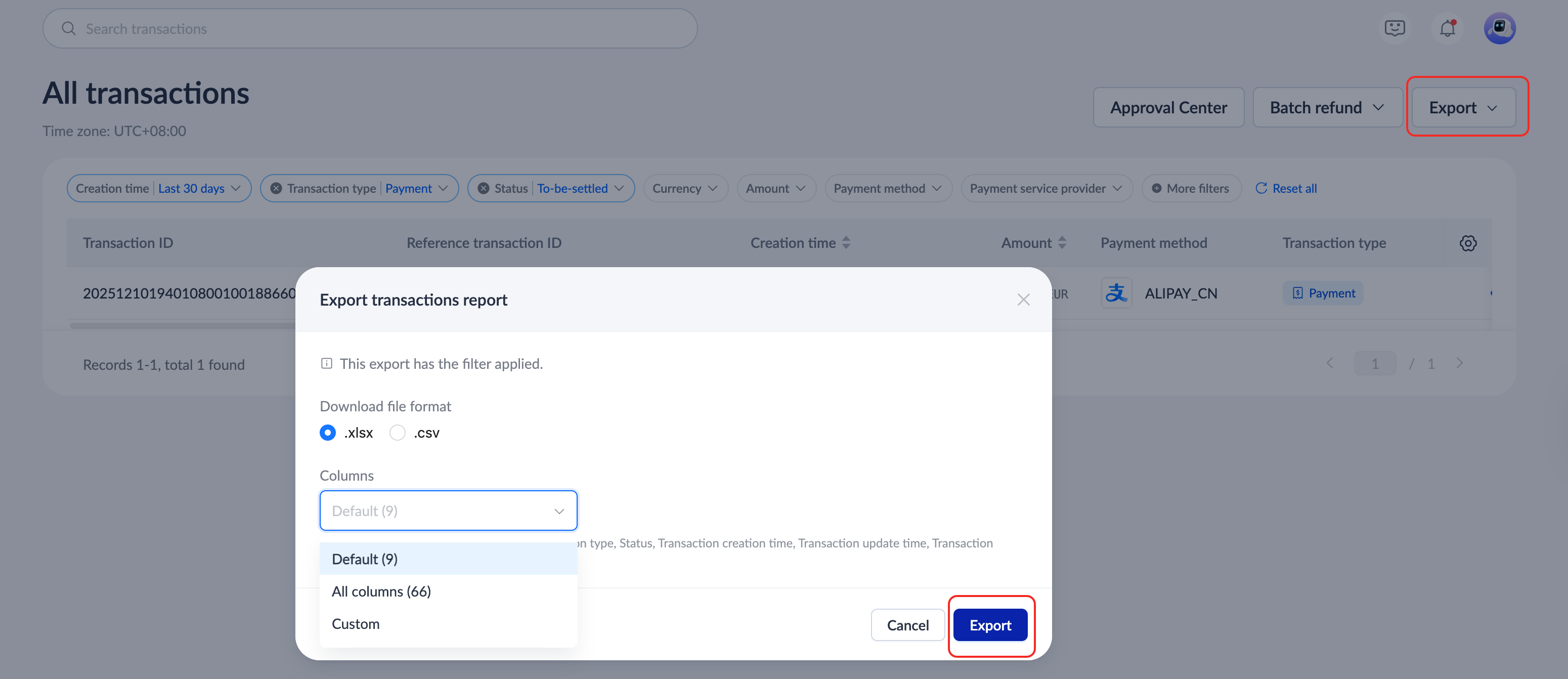
- Click Export > Export transactions report.
- In the Export transactions report pop-up window, select the file format and the fields you want to export. Follow the instructions below to select column fields that support exporting. The Columns field supports the following three options, and the selected field will be displayed below the option:
- Default: Export the default 9 fields for the transaction list.
- All columns: Export the 66 fields supported by the transaction list.
- Custom: Export the fields you specified. Once selected, you can check the fields you want to export in Transaction details, Payment details, and Settlements details below.
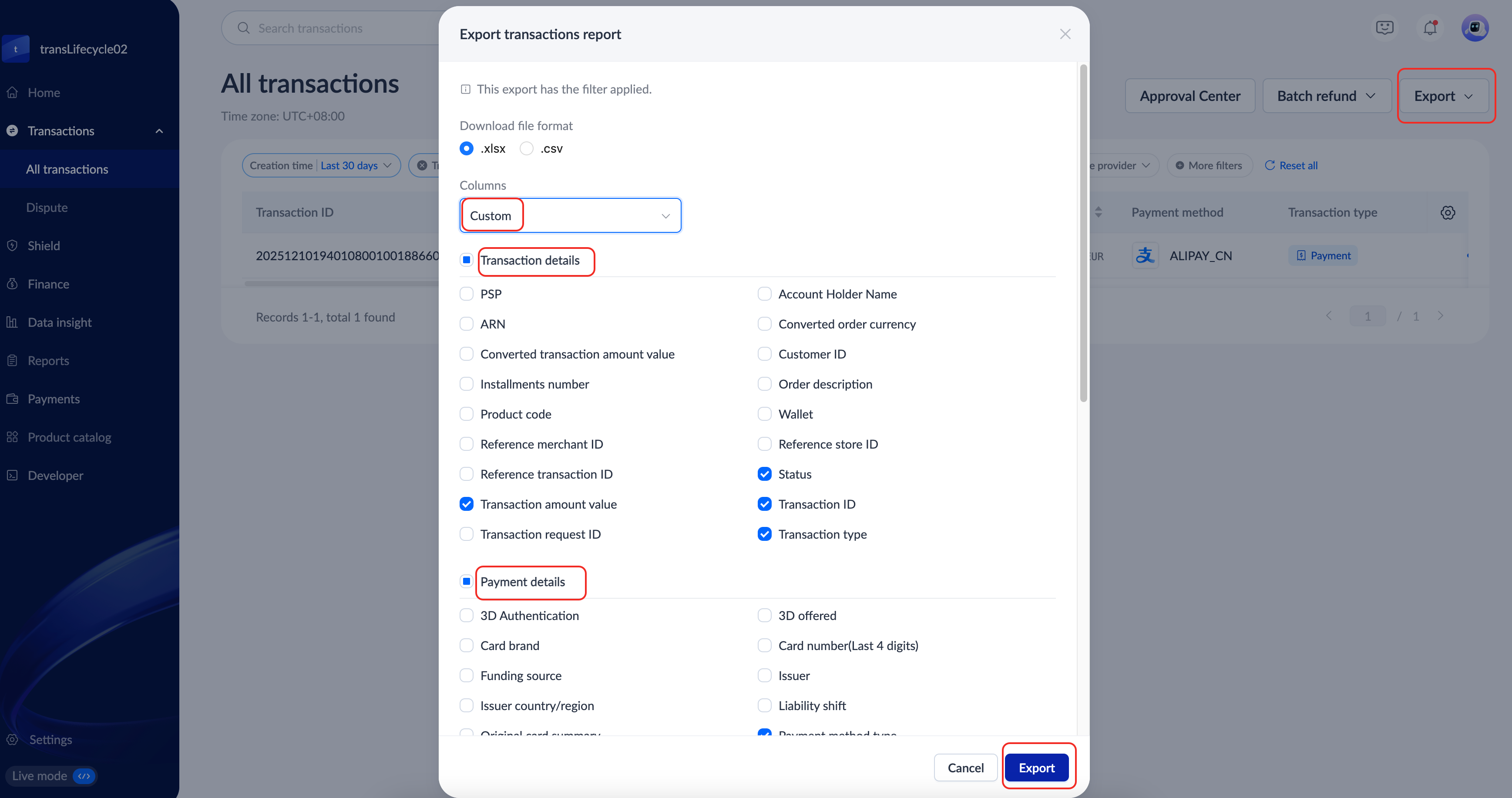
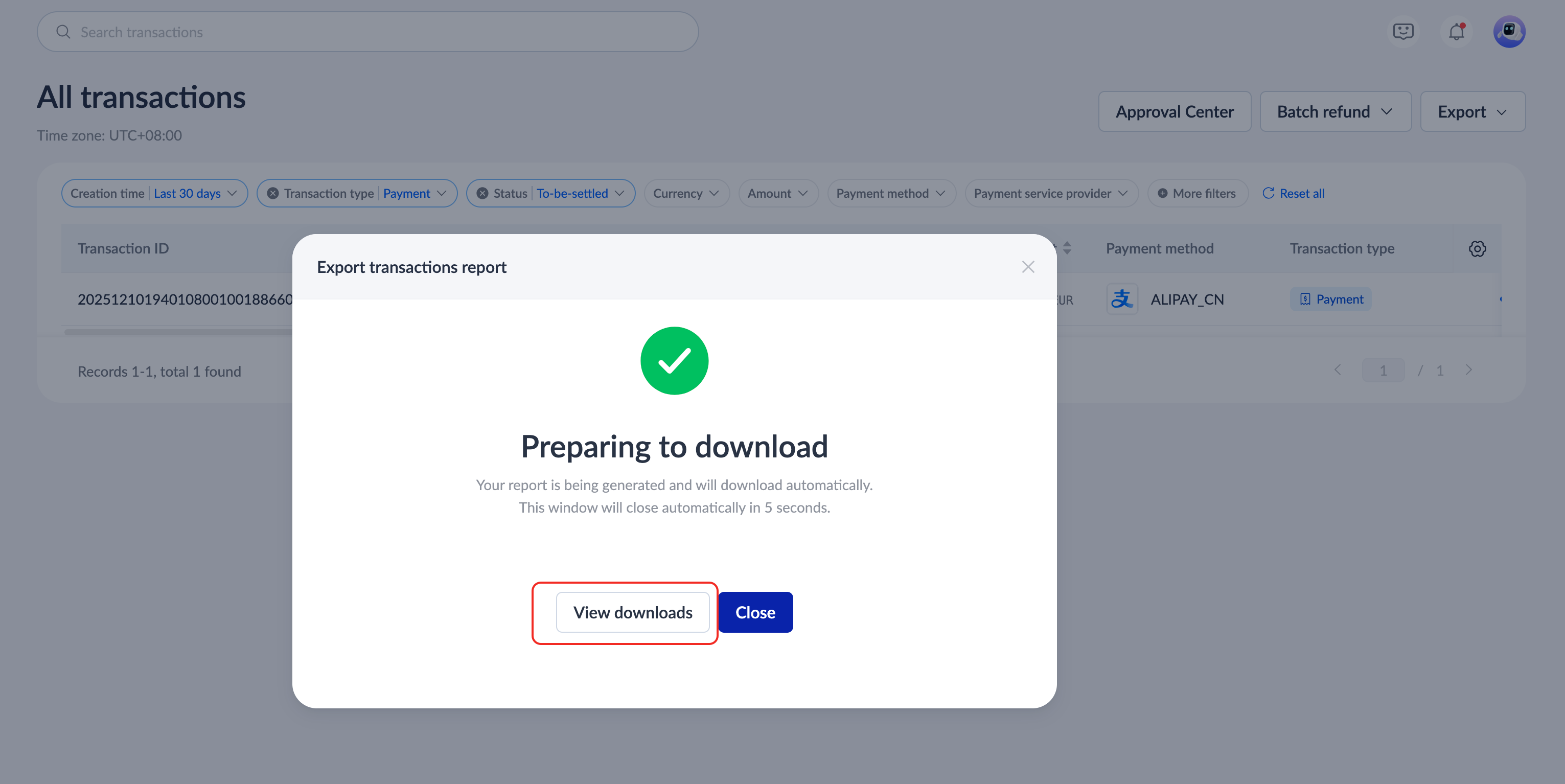
- Click Export to complete the export. You can also click View downloads to see the download progress of transaction reports.
|
|
Transactions report download history
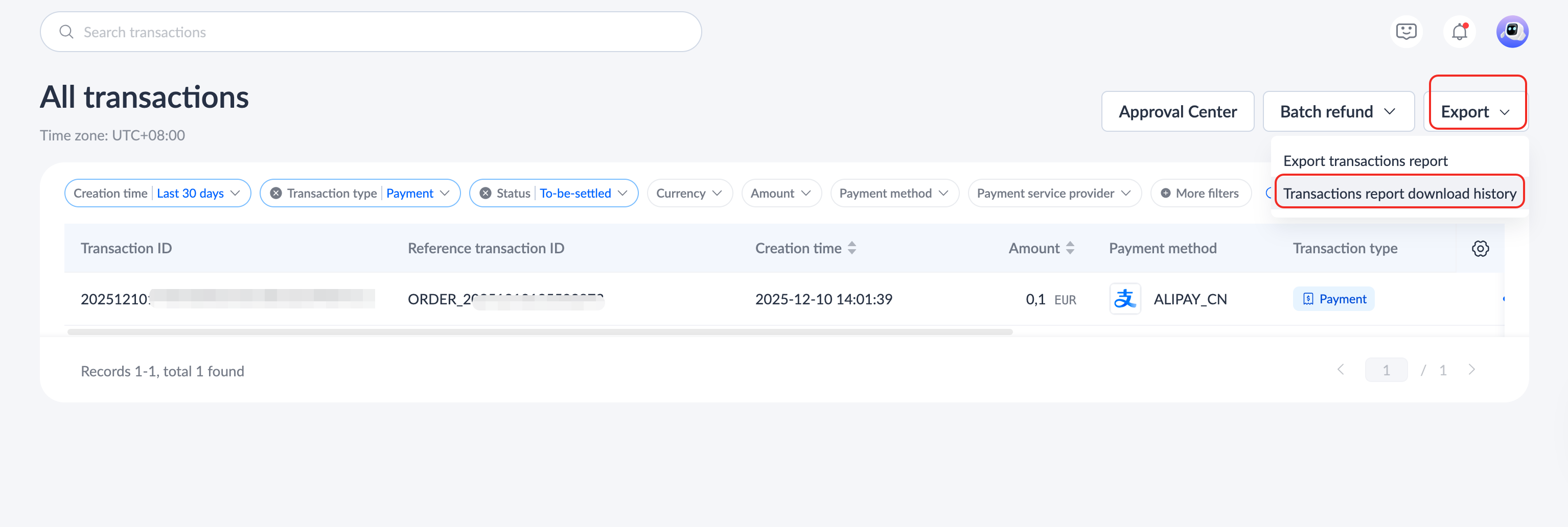
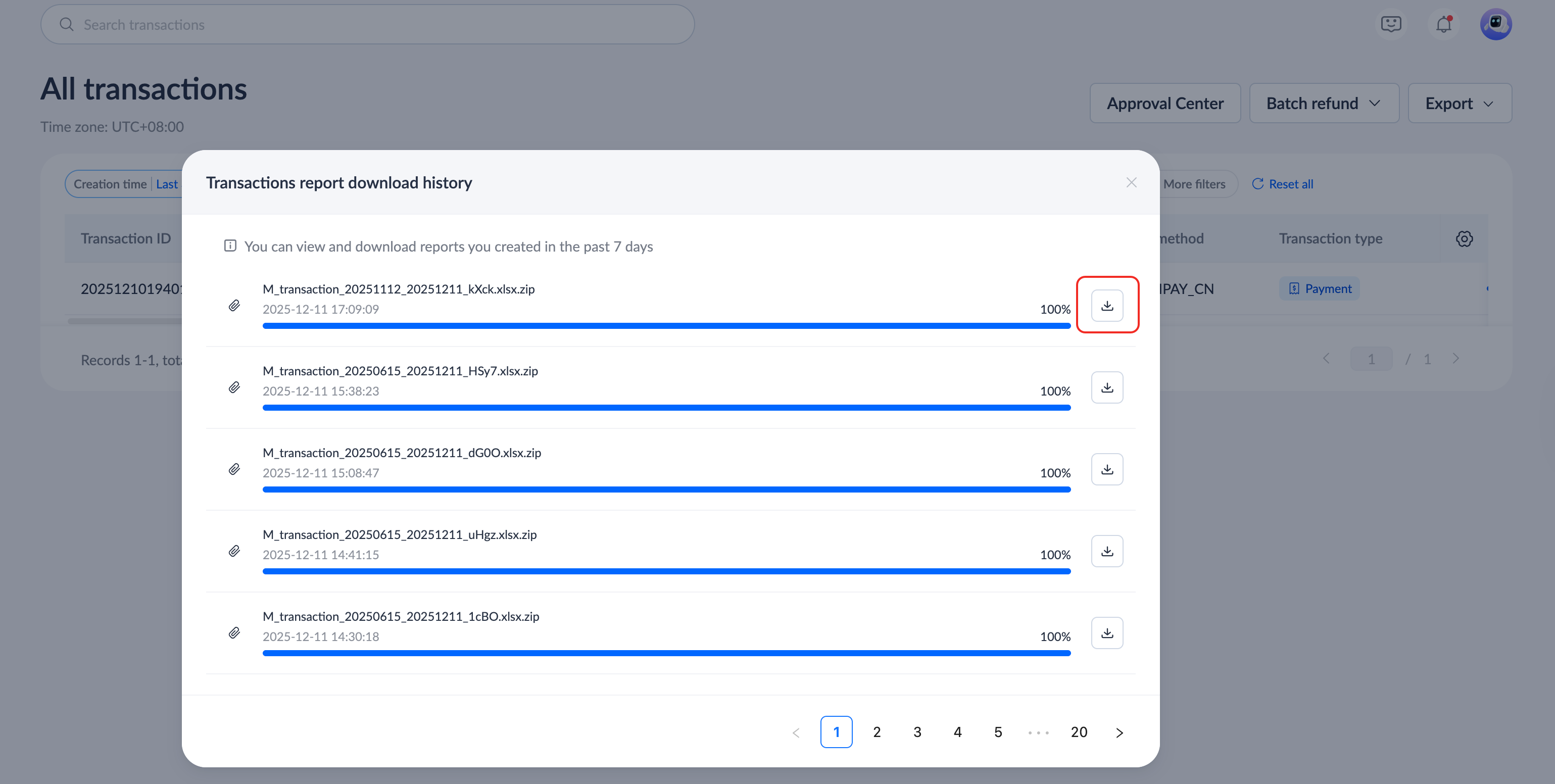
You can click Export > Transaction report download history to view the download progress of the transaction reports, and click the download icon in the Transaction report download history pop-up window to download the exported transaction file. You can view and download reports in the past 7 days.
|
|
Refund transactions
You can refund a transaction and check the refund result under Transactions > All transactions.
Initiate a single refund
To refund a successfully paid transaction, follow these steps:
Note: The refund function is only available when the transaction type is a payment or capture and the refundable amount is greater than 0. Otherwise, the Refund button on the page is grayed out.
- Filter the transactions to be refunded or directly search for the Transaction ID of the transaction to be refunded.
- Click the Transaction ID of a specific transaction to be refunded to enter the transaction details page.
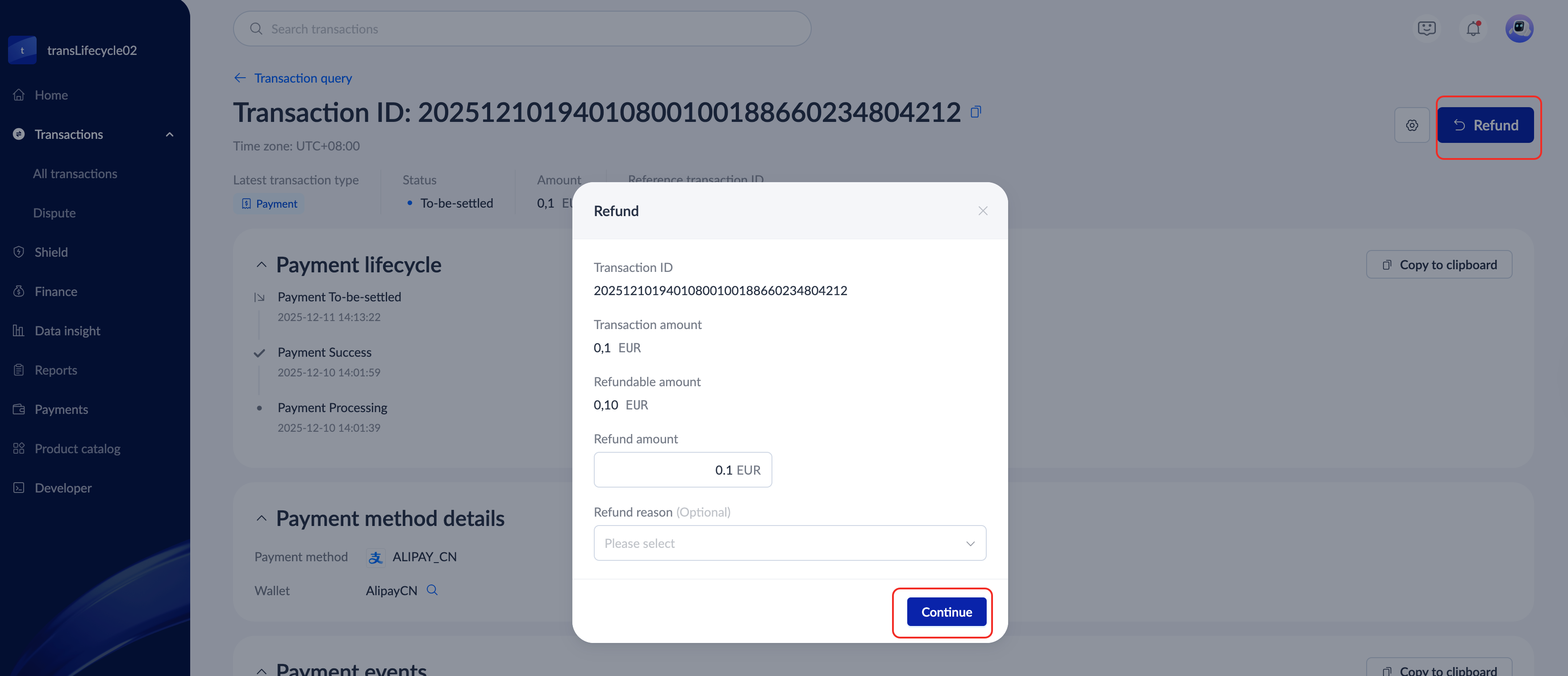
- On the transaction details page, click Refund to initiate a refund process.
- In the Refund pop-up window, you need to complete the following:
- Refund amount: Enter the refund amount and make sure the refund amount is less than the refundable amount.
- (Optional) Refund reason: Select a reason for refund.
- Click Continue.
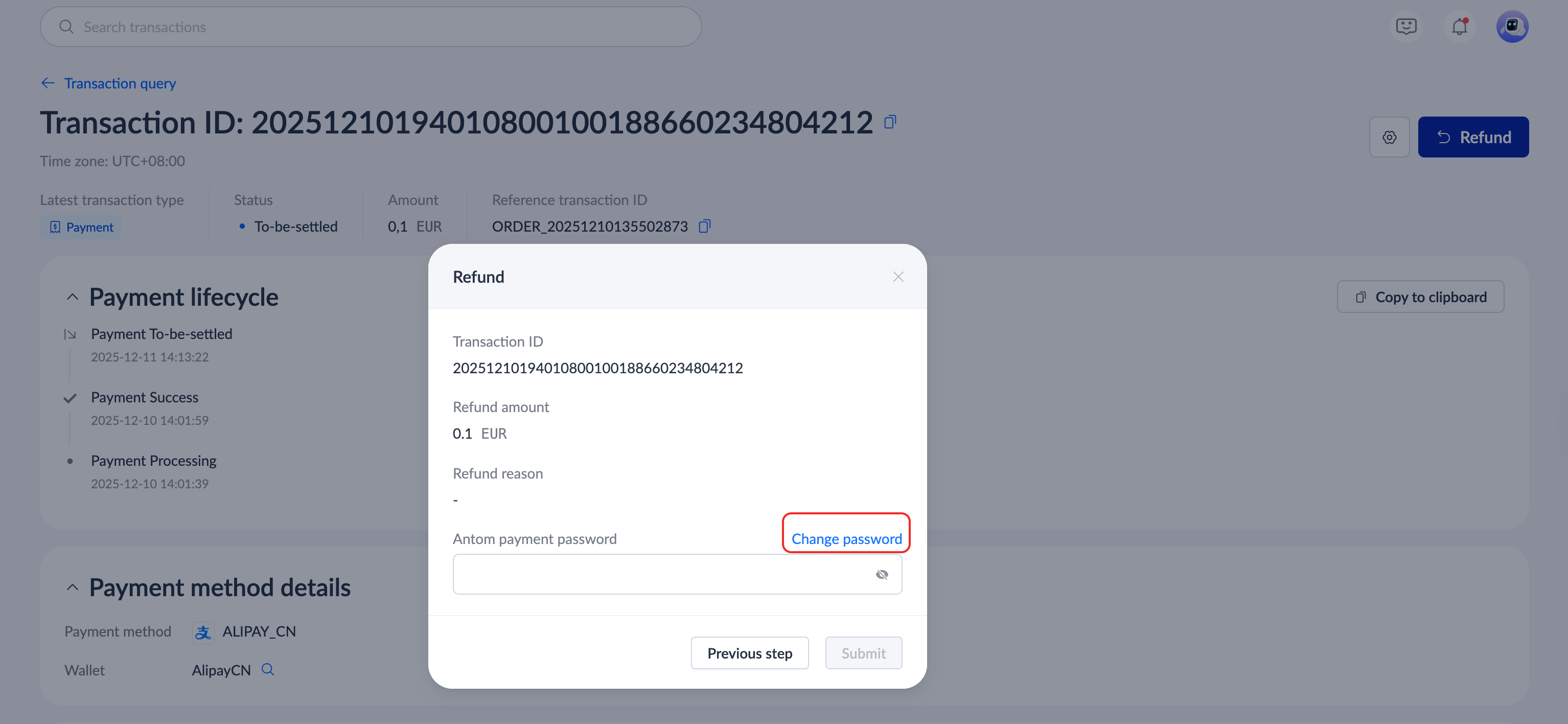
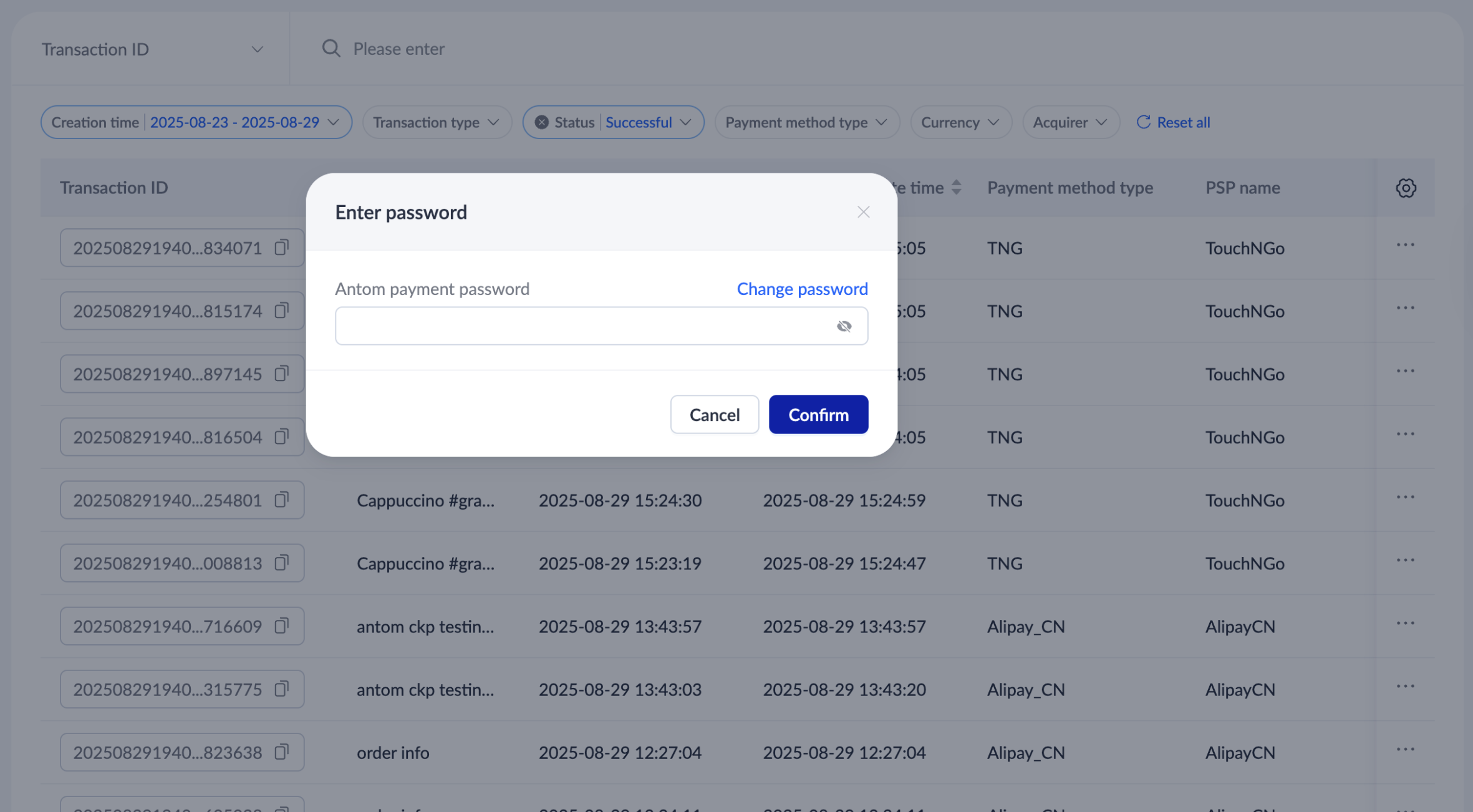
- Confirm the refund information, enter the Antom payment password, and click Submit. When initiating a refund for the first time through Antom Dashboard, you need to click Change password below the Antom payment password input box to set a password.
|
|
In addition to performing refunds in Antom Dashboard, you can also initiate a refund by using the refund API. See Initiate a refund request for detailed steps.
Check refund result
On the All transactions page, Filter the transactions. if Transaction type shows as Refund and the Status is Success, it means that the transaction has been successfully refunded.

Click a specific transaction ID to view the refund details for the transaction.
Note: For refunded transactions, only those that have been successfully refunded can be viewed in the Transaction query module of Antom Dashboard. Refunds that are in progress or have failed are not displayed in the dashboard.
Initiate a batch refund
When processing multiple refunds, you can use batch refunds by uploading an Excel file, which saves time, reduces human error, and simplifies refund processing. By providing the Excel file, the system ensures the accuracy of the refund processing by verifying the format of key fields such as transactionId, transactionCurrency, and refundAmount.
Note: By default, the batch refund feature is available to merchants assigned with the Admin, Finance, or Operations role. For more information on creating or modifying role permissions, refer to Multi-operator.
Upload batch refund file
Follow the steps below to process up to 1000 refunds by uploading a single Excel:
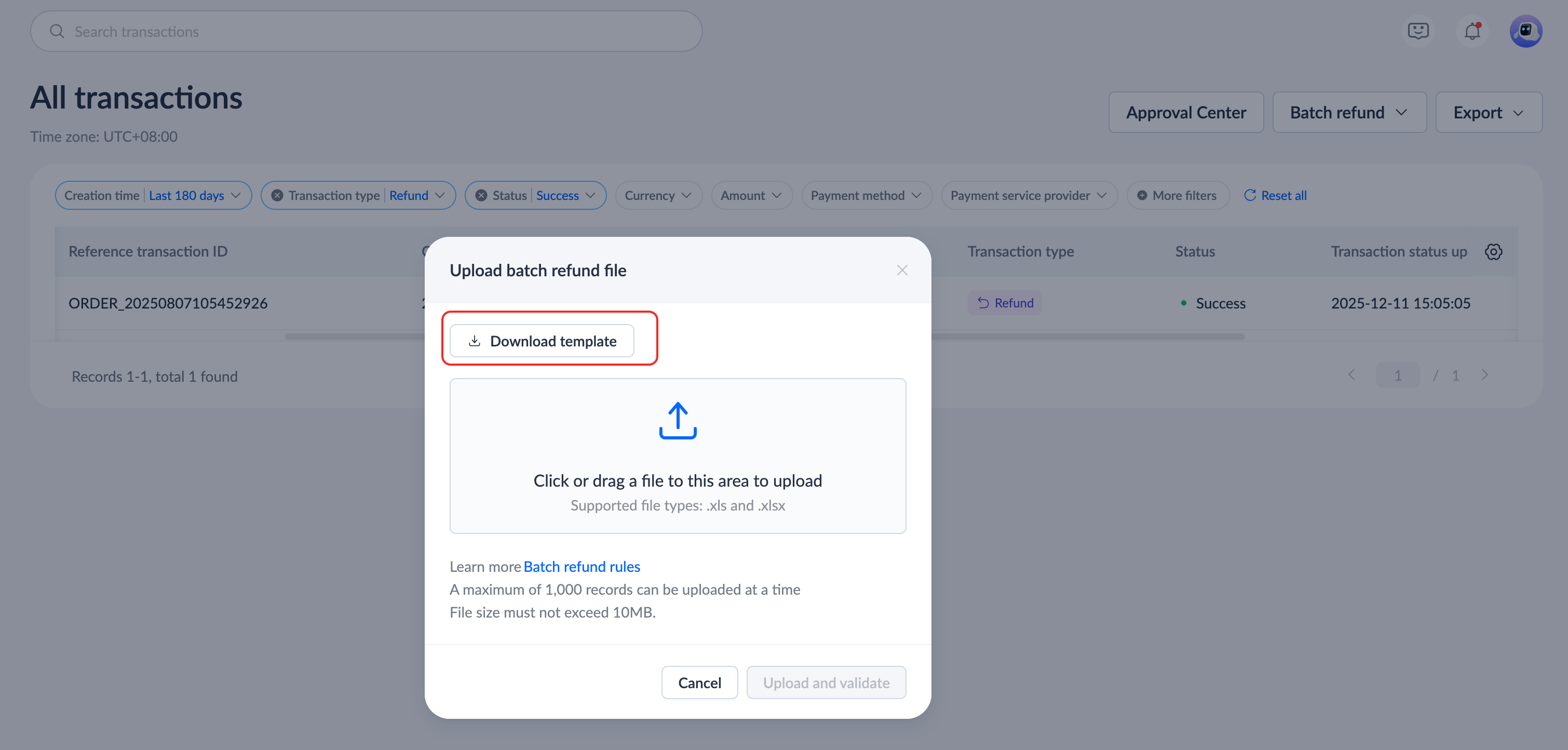
- Click Transactions > All transactions > Batch refund > Upload batch refund file. The Upload batch refund file pop-up window opens.

- In the Upload batch refund file pop-up window, upload the Excel file. Click Download template to download the template file in .xls or .xlsx format.
- In the downloaded template, row 1 displays the field names, and rows 2 and 3 show examples of refunded transactions for reference purposes. Row 1 must be retained, and rows 2 and 3 must be deleted before uploading the Excel file to Antom Dashboard. The following explains how to provide the refund details in the correct format:
- transactionId: Indicates the transaction ID that requires a refund.
- modification: This field is fixed to
REFUND. - transactionCurrency: The transaction currency. The value is a 3-letter currency code that follows the ISO 4217 standard and is consistent with the currency of the refund amount.
- refundAmount: The refund amount. The value of the amount is a positive integer. If the amount is 10 USD, then the input value should be 10.00 or 10.
- reason: The refund reason, which is an optional field and can be left empty.
Note: The refund details in the Excel file must be provided based on the example format. If the required fields are empty or the format is incorrect, the file upload may fail.

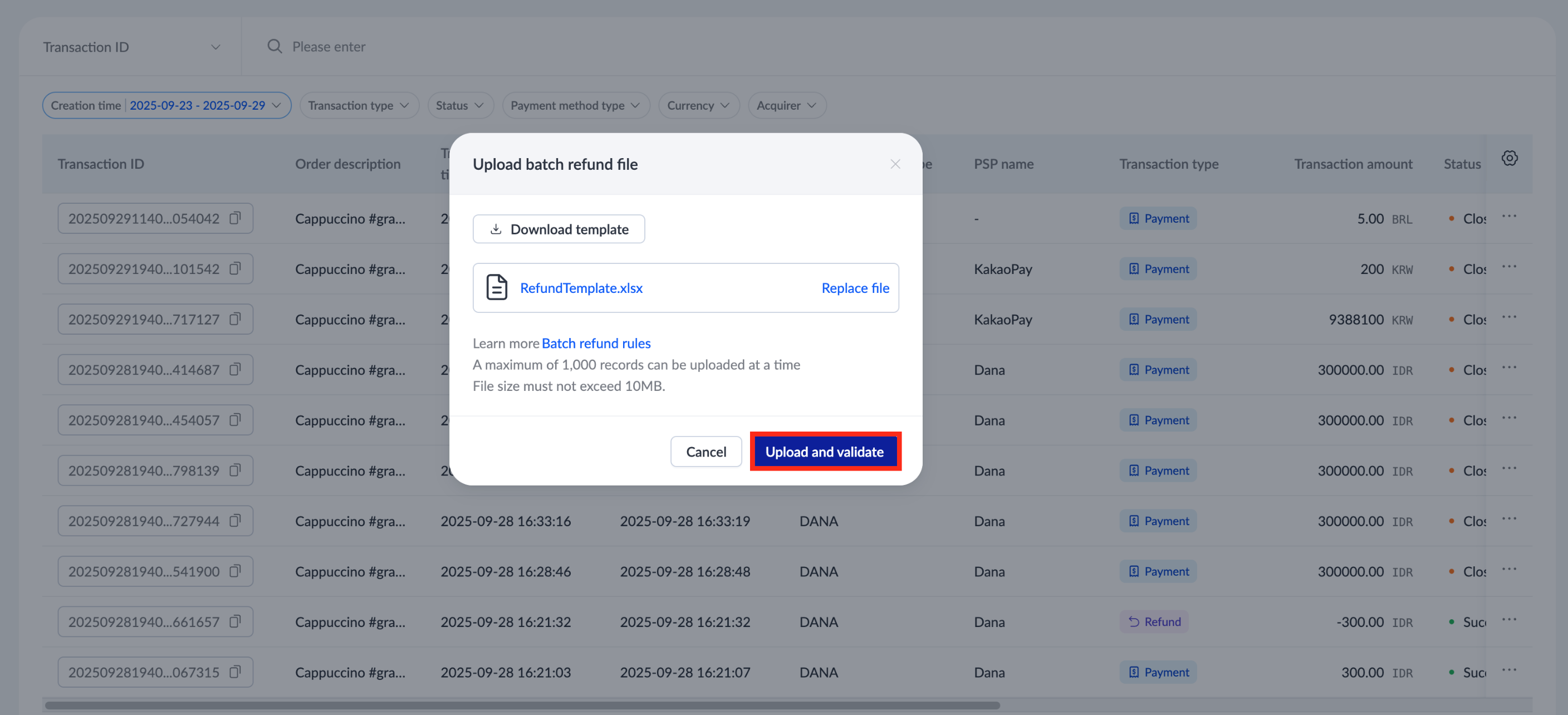
- In the Upload batch refund file pop-up window, once the Excel file is uploaded, click Upload and validate. The system verifies the file format of the uploaded Excel file. If prompted with a format error message, re-upload the Excel file in the correct format.
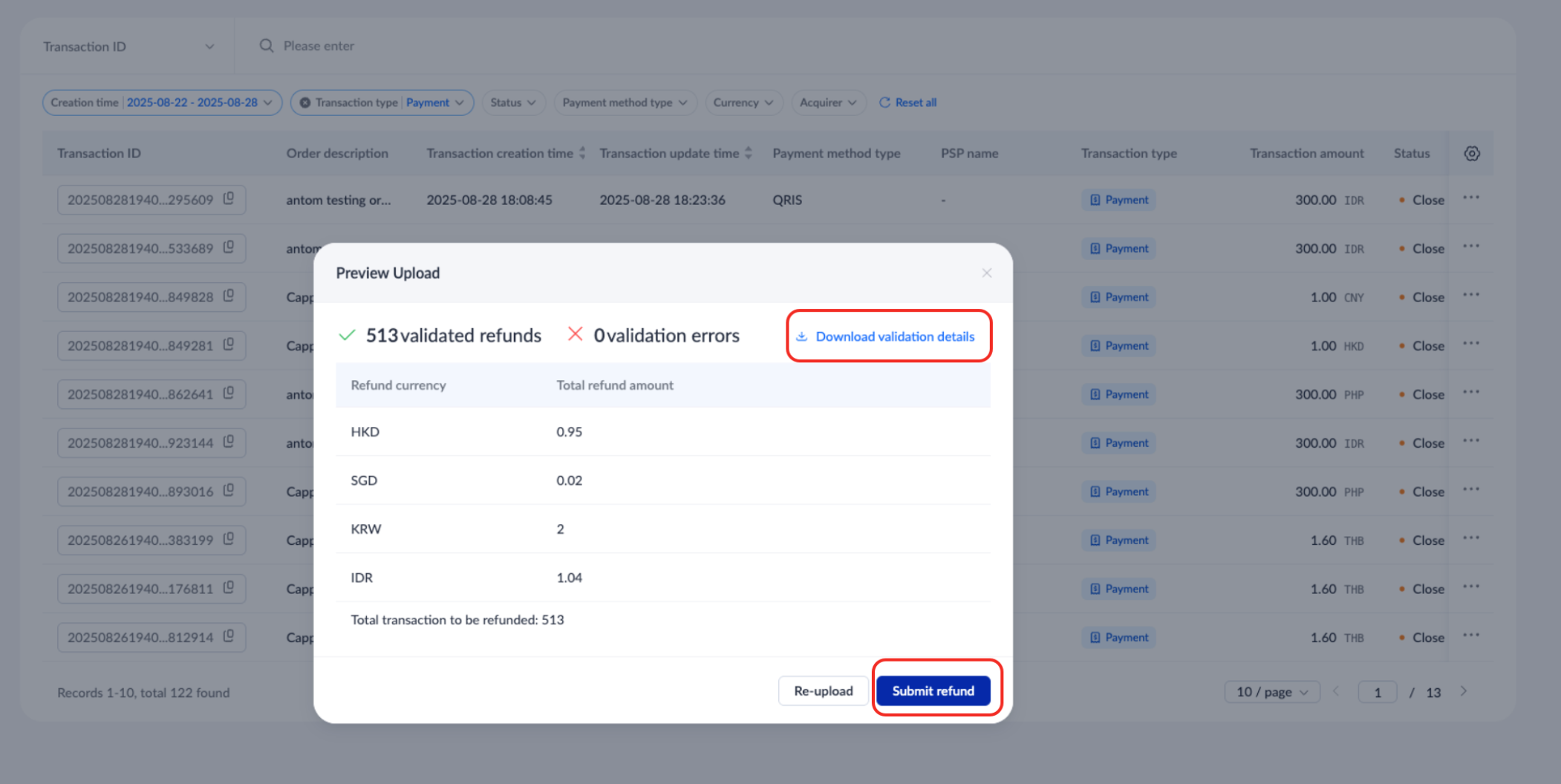
- In the Preview Upload pop-up window, you may encounter one of the following scenarios:
- Contains validation errors: The uploaded Excel file may contain information that does not comply with the required format. Click Download validation details, check the furtherAction field in the downloaded file for guidance, and re-upload the Excel file.
- Zero validation errors: The validation of the information contained in the Excel file is successful. You may proceed with processing the batch refund by clicking Submit refund.
- In the Enter password pop-up window, provide your Antom payment password, and click Confirm to complete the submission.
|
|
View batch refund results
Use one of the following methods to check the batch refund status or result:
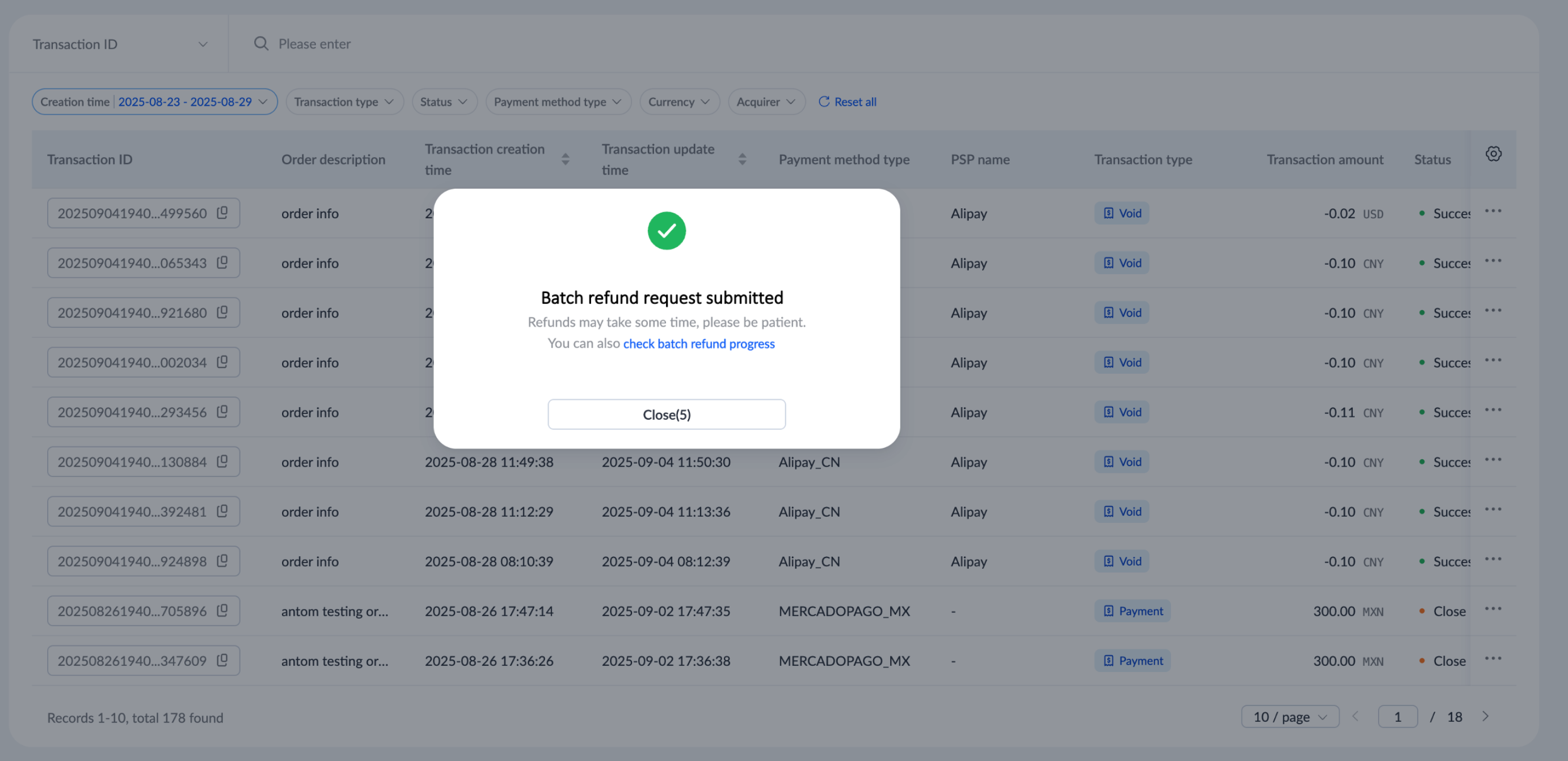
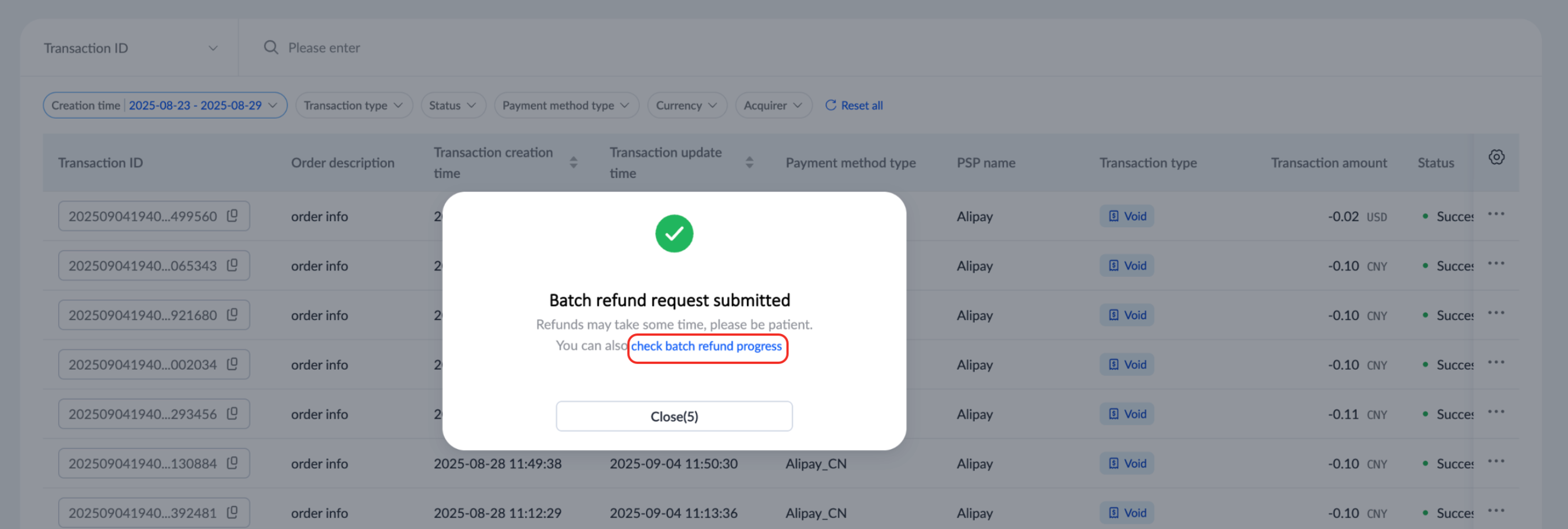
- Check batch refund progress: After the process of uploading the batch refund file is completed, in the Batch refund request submitted pop-up window, click check batch refund progress to check the progress of the batch refund.
- View batch refund status: Click Transactions > All transactions > Batch refund > View batch refund status to view the status of all batch refunds on the Batch refund result window.
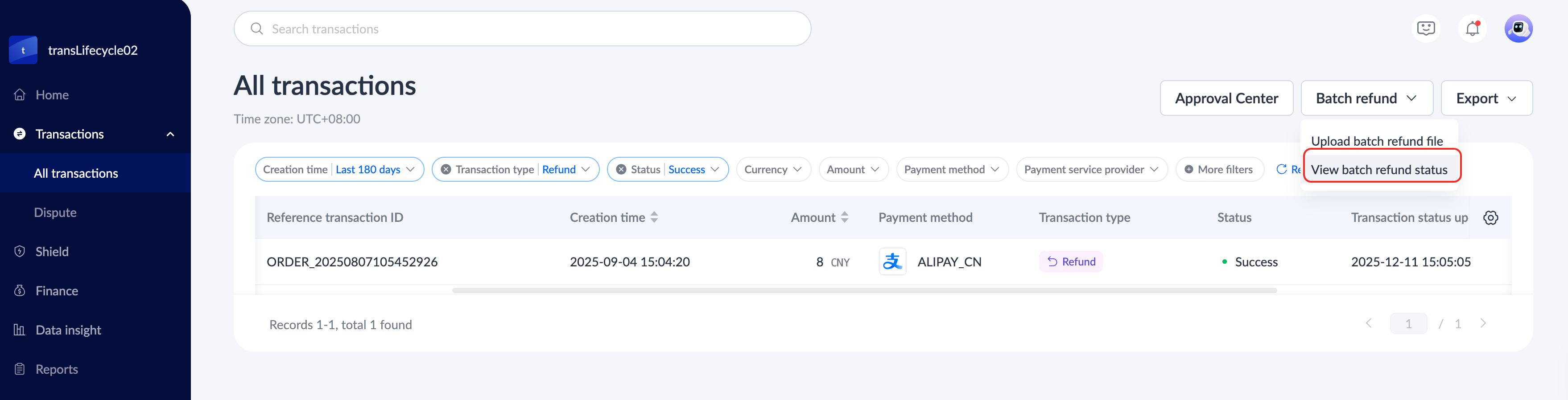
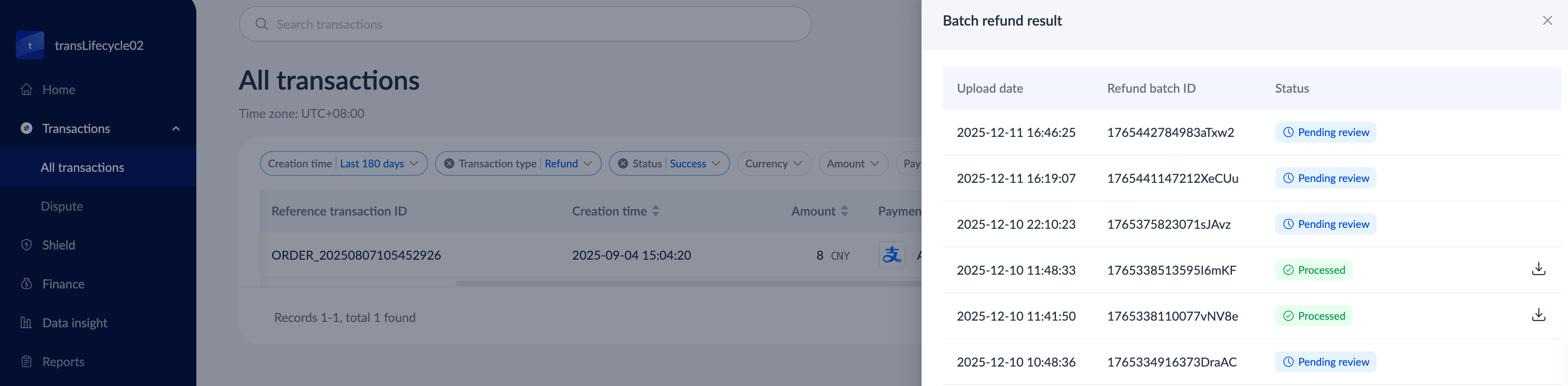
When the batch refund process is completed, you will receive a system notification.

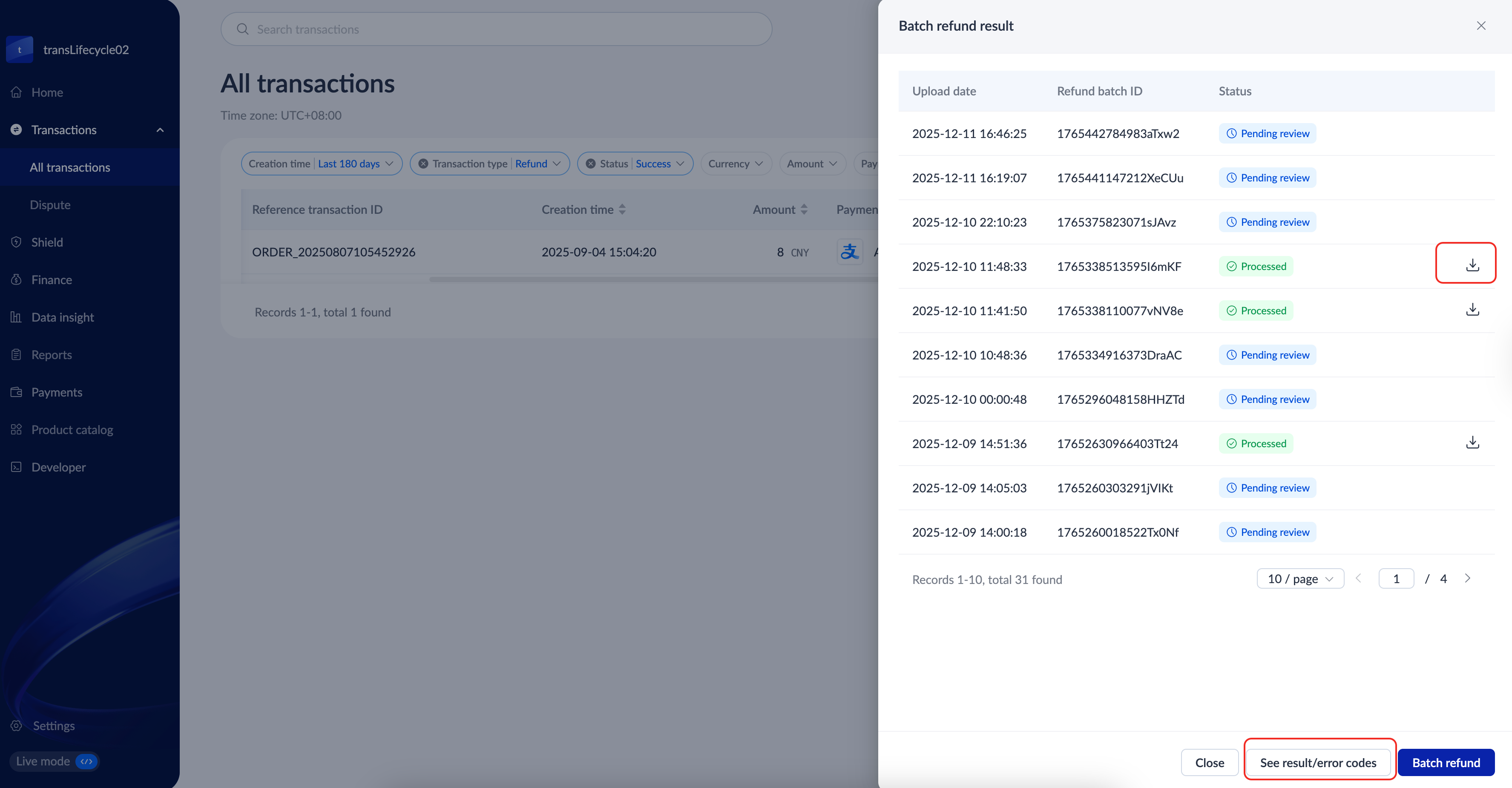
Navigate to the Batch refund result page, and use the following options based on your needs:
- Click the download icon of the respective batch refund to download and view its details.
- Click See results/error codes to view the processing results of each batch refund. If the batch refund fails, follow the system prompts to proceed to the next step. For more information, refer to Refund error codes.
Download refund receipts
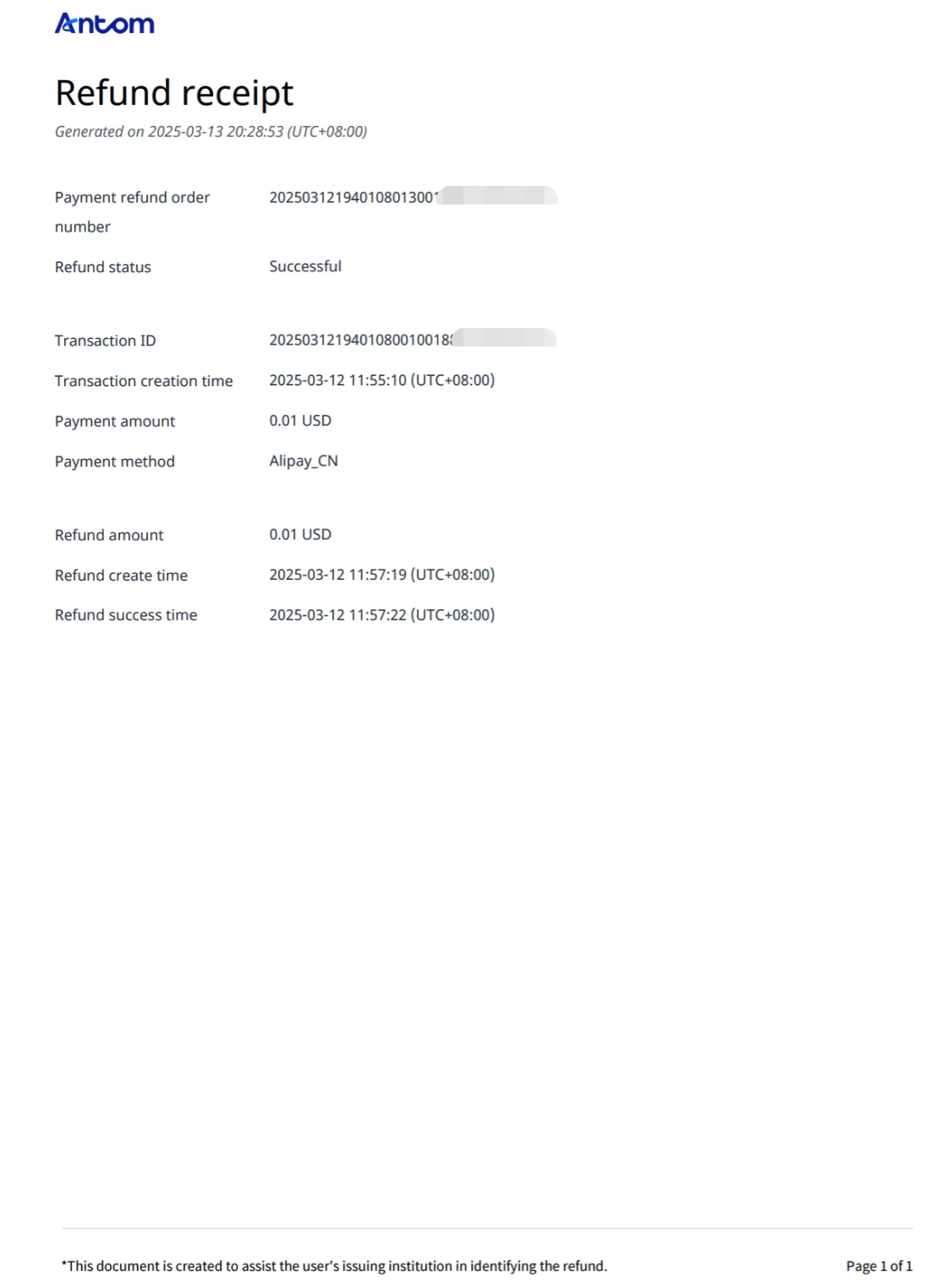
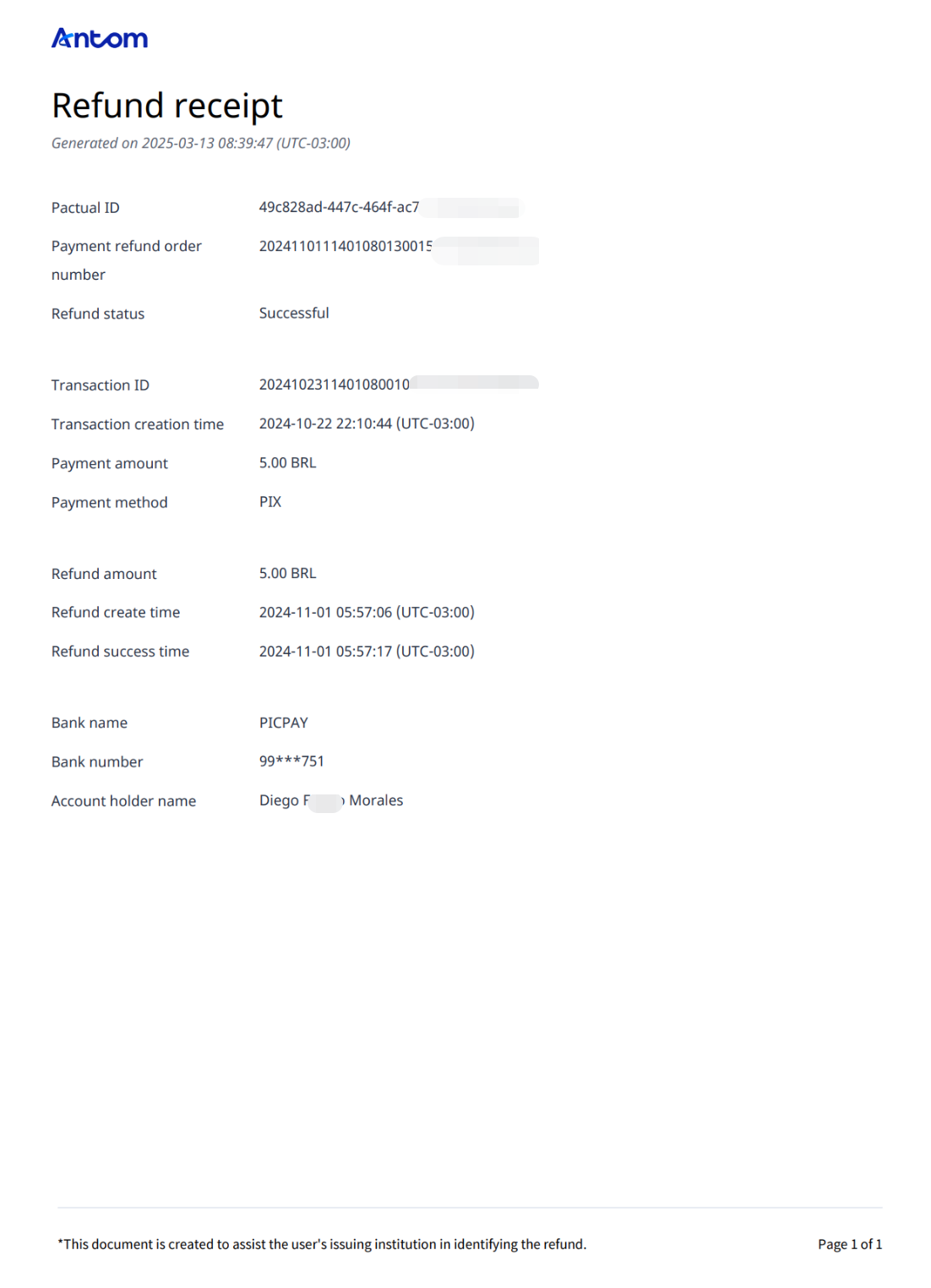
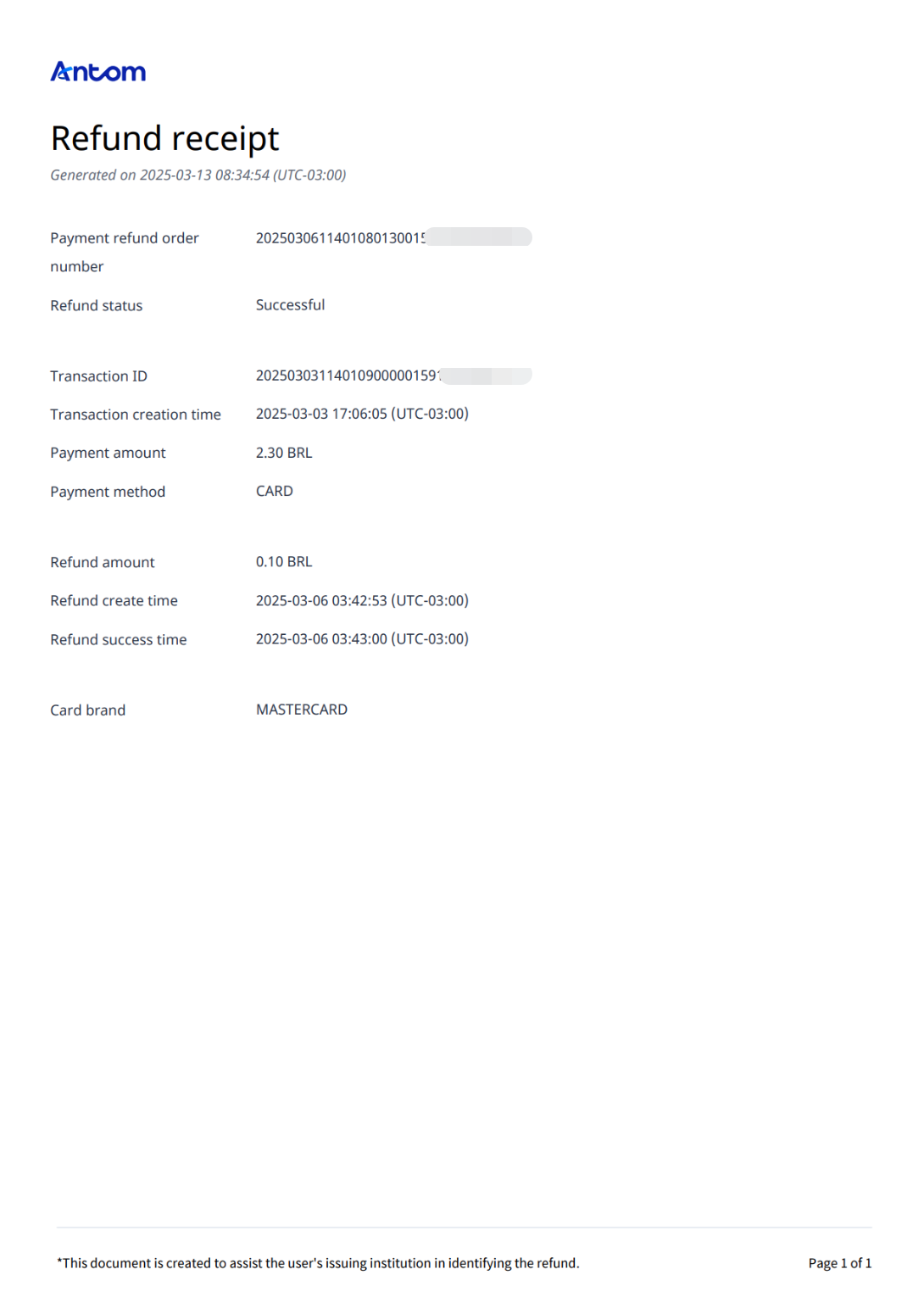
Antom offers a refund receipt feature that serves as official proof that the merchant has successfully processed the refund for the customer. This feature ensures transparency, enhances customer trust, and provides both parties with a clear record of transactions.
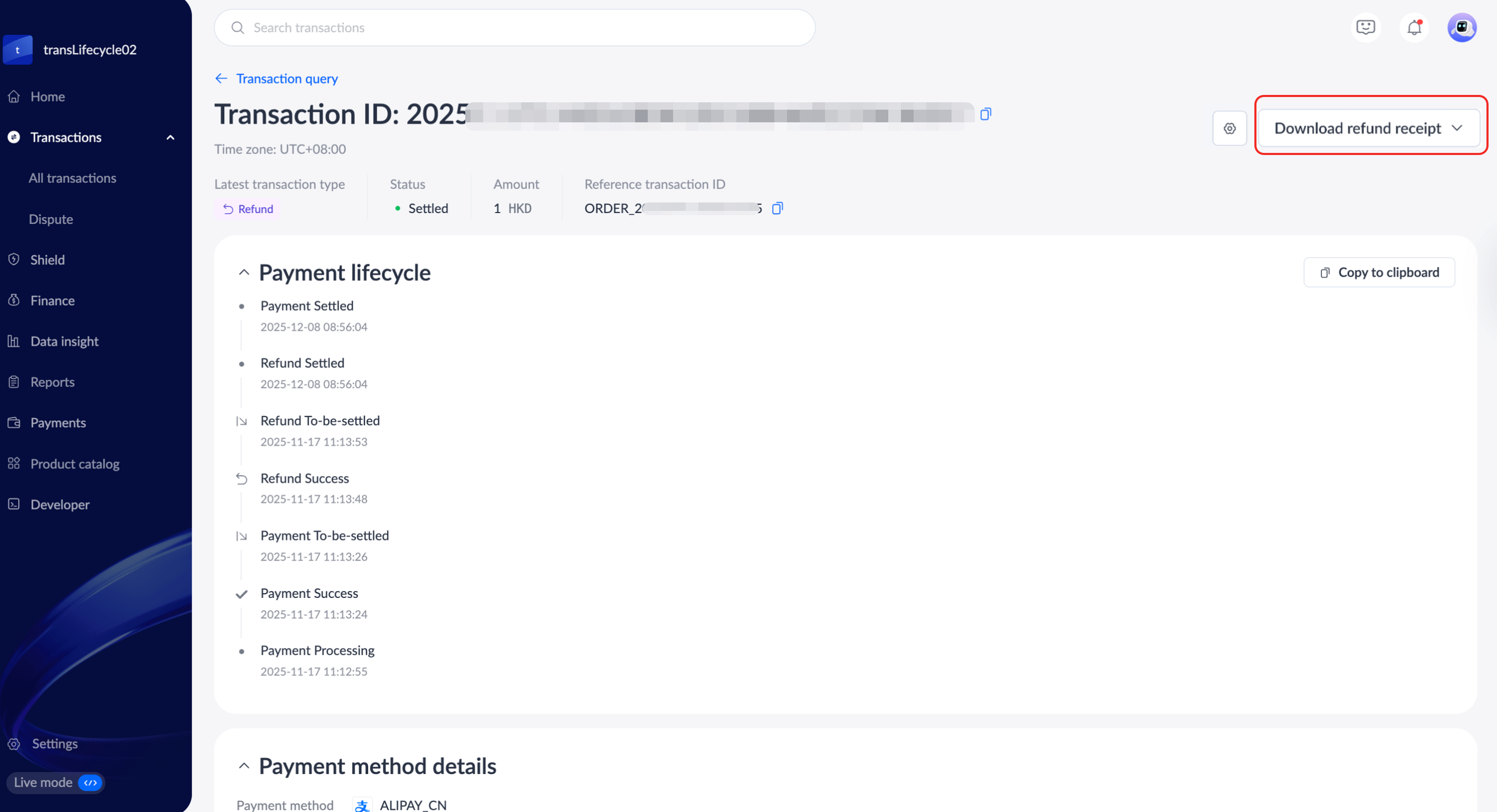
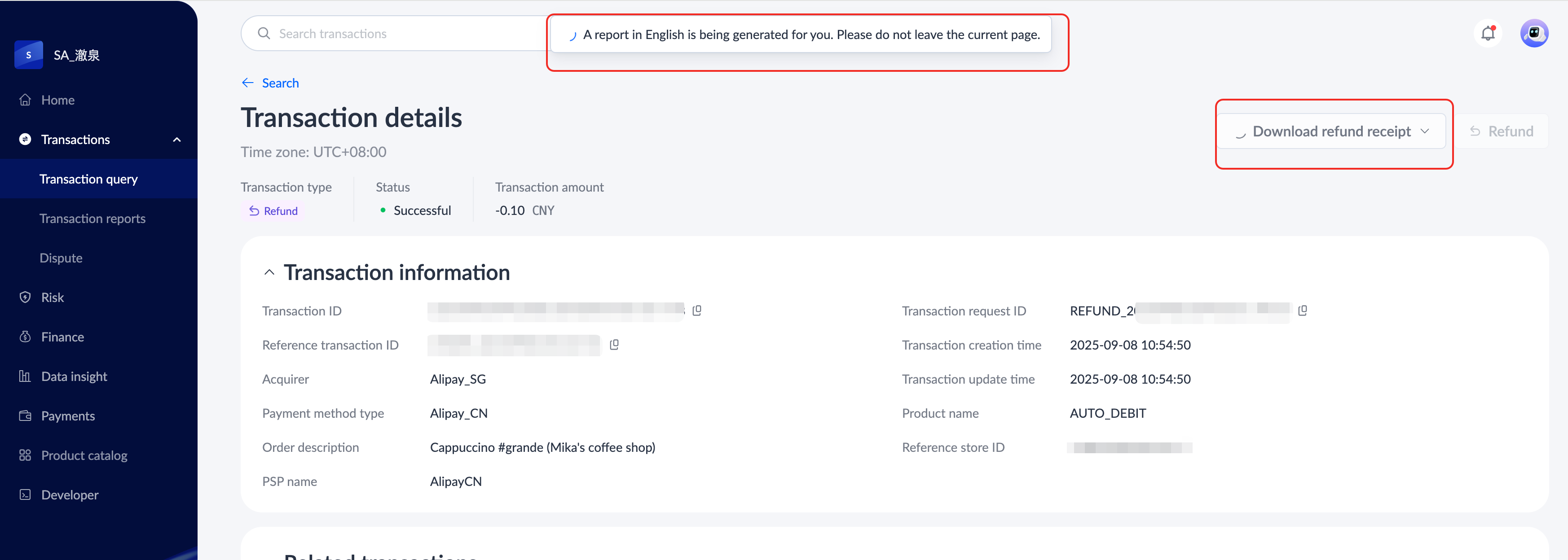
Click Transactions > All transactions to enter the Search page, select the transaction ID you want to query, and click the specific transaction ID to enter the Transaction details page. Refund and Download refund receipt will be displayed in the upper right corner of the page once the transaction has been successfully refunded. If there is a related transaction, it will be displayed in the Related transactions area below.
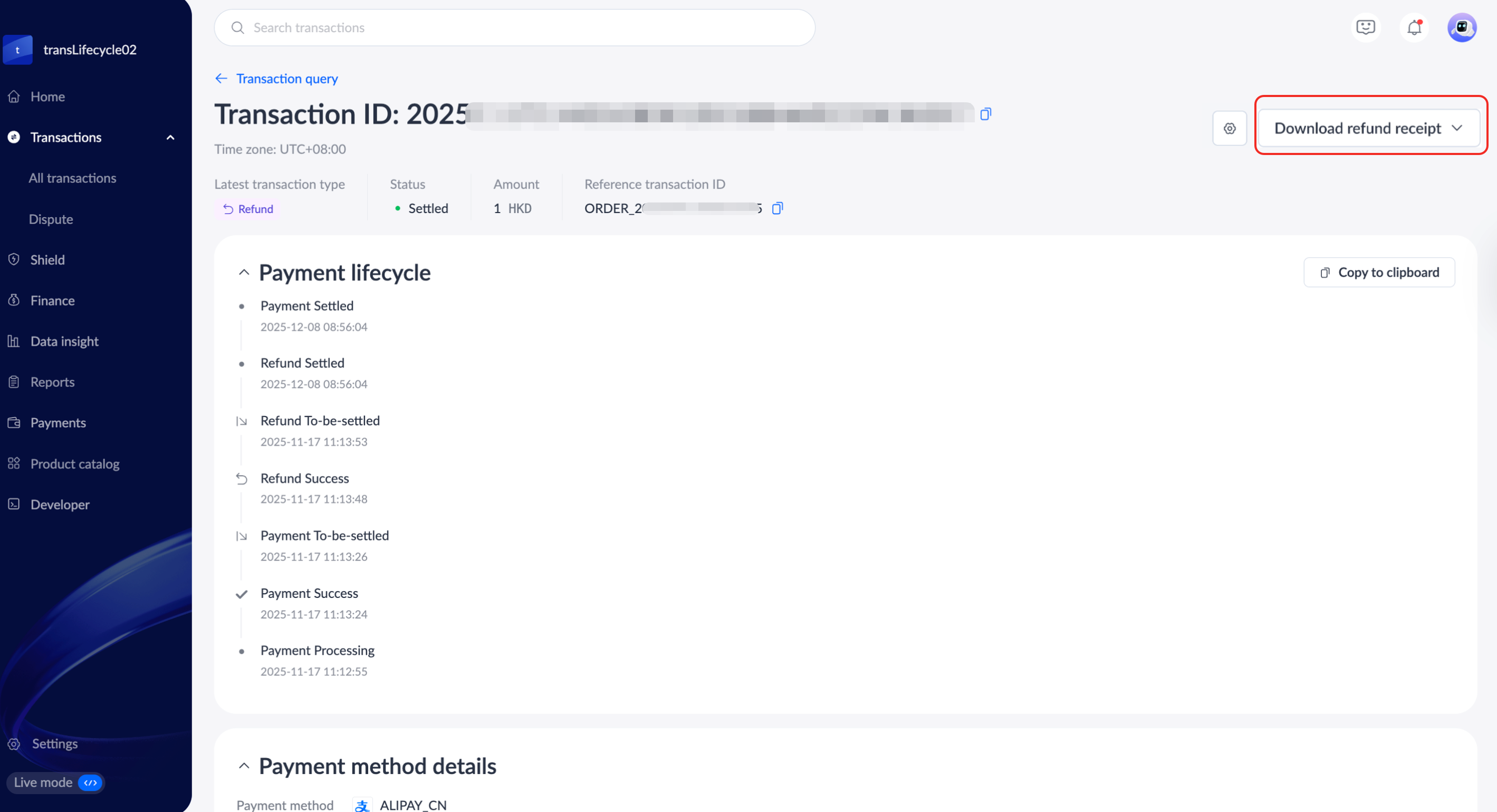
To download the refund receipt, hover your mouse over the Download refund receipt drop-down menu, and click the desired language. Currently, Antom supports downloading of refund receipts in English, Chinese, and Portuguese (Brazil). Selecting the desired language displays a download progress message, and the refund receipt will be downloaded in PDF format.
|
|
There are differences in the display of refund receipt fields for different payment methods. The following are samples:
Capture or cancel transactions
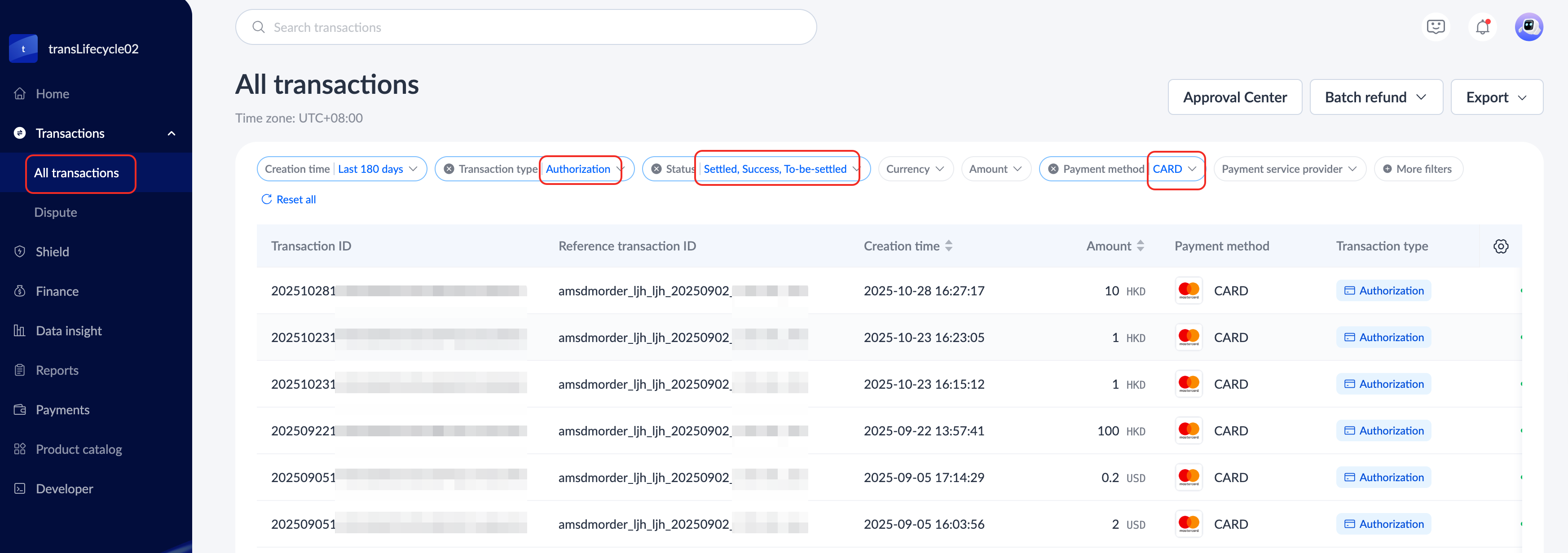
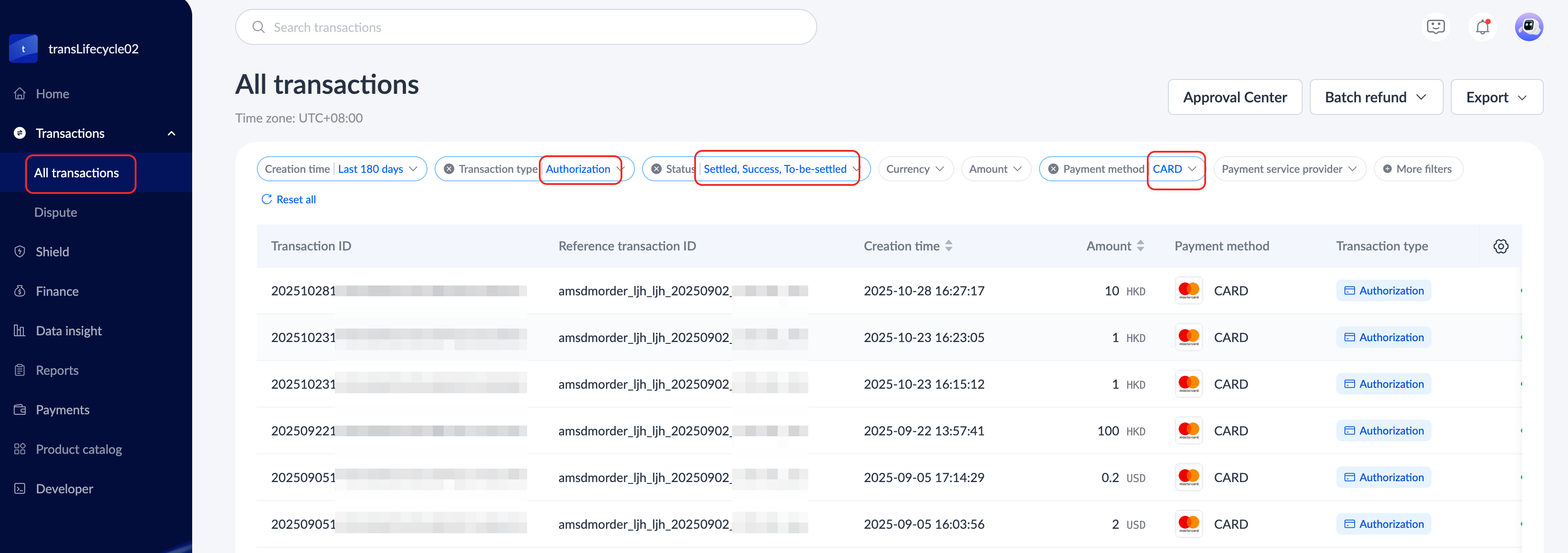
You can initiate a capture, view the capture result, or cancel the transaction on the transaction details page. Note that you can capture or cancel transactions only when the following conditions are met:
- When the Payment method is CARD.
- When the Transaction type is Authorization and the Status is Sucess, To-be-settled, or Settled.
Initiate a capture
On the Transactions > All transactions page, follow these steps:
- Filter the card transactions that meet the capture criteria in the transaction list.
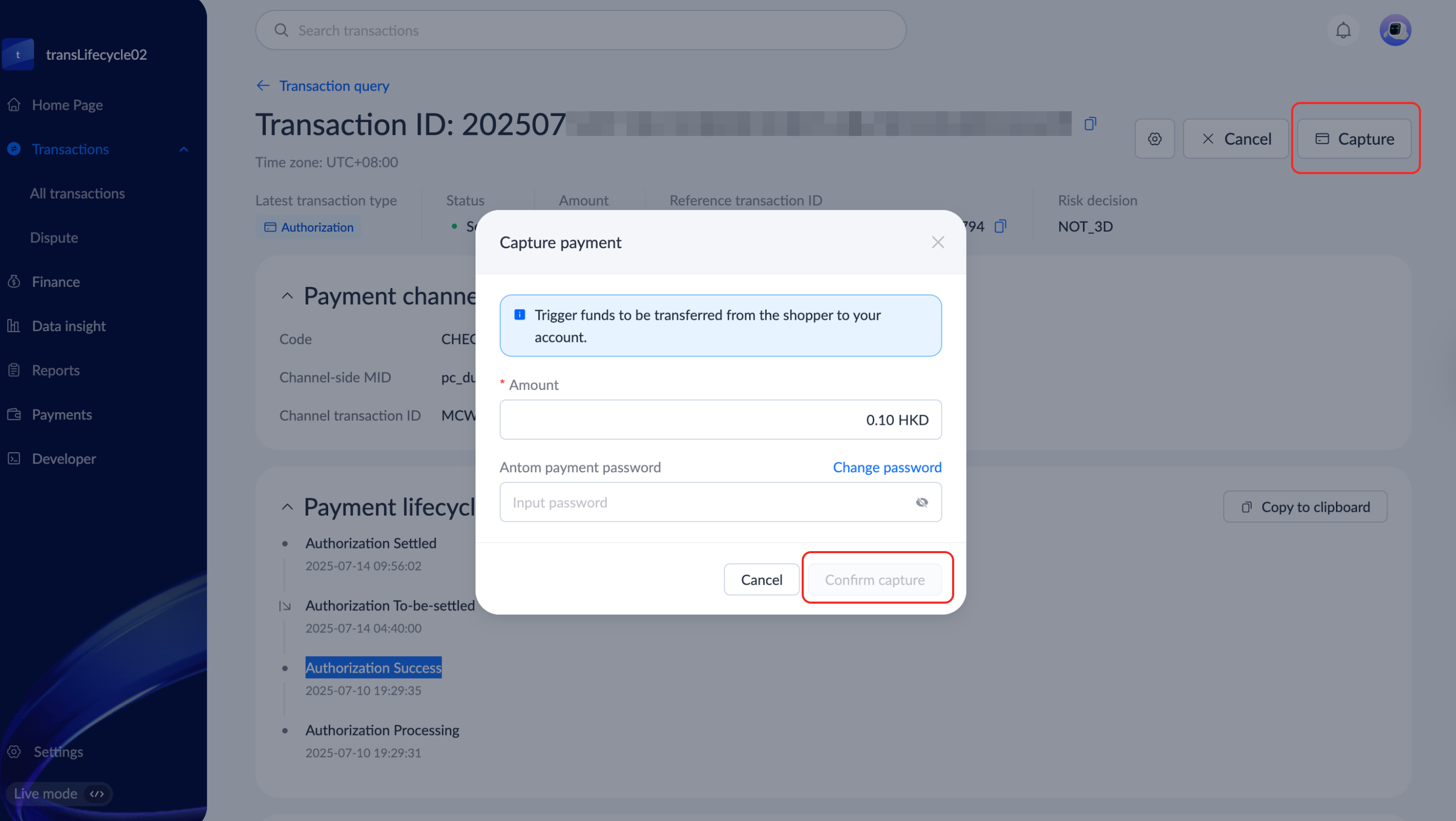
- Click the Transaction ID of a specific transaction to be captured to enter the transaction details page.
- On the transaction details page, click Capture to initiate the capture process.
- Fill in the Amount and Antom payment password in the Capture payment pop-up window, and click Confirm capture to complete the capture process.
|
|
Cancel a transaction
On the Transactions > All transactions page, follow these steps:
- Filter the card transactions that meet the cancel criteria in the transaction list.
- Click the Transaction ID of a specific transaction to be cancelled to enter the transaction details page.
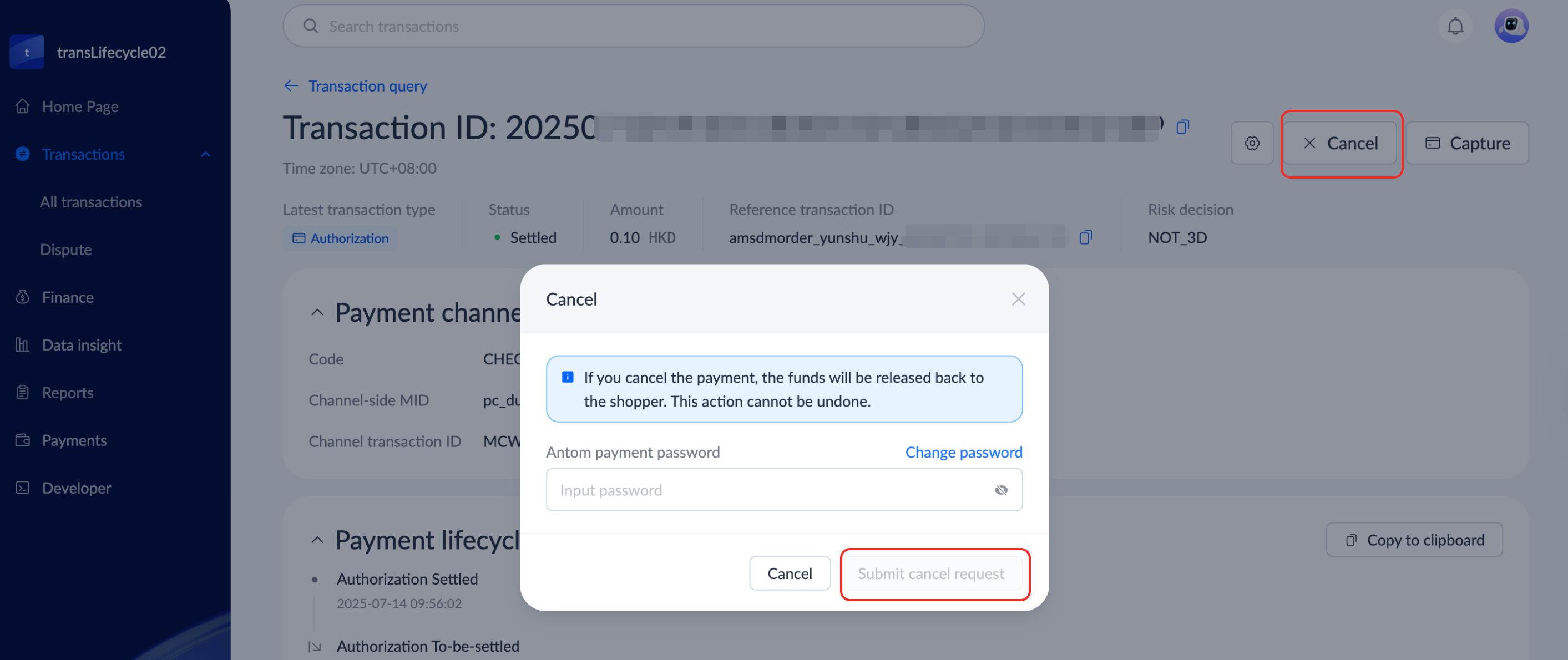
- On the transaction details page, click Cancel to initiate the cancel process.
- Enter the Antom payment password in the Cancel pop-up window, and click Submit cancel request to complete the cancel process.
|
|